Frequently Asked Questions
If you can't find the answer here, please ask in the SatSignal
self-help group.
Q01: <program name>.exe is missing from the Zip file.
A: You have Windows set to hide "system" files. In Explorer,
Tools, Folder Options..., View tab, uncheck "Hide extensions for known file
types", and possibly "Hide protected operating system files".
Q02: I get a message that VCL50.bpl is missing.
A: Please download and install the runtime Library Bundle.
Q03: I get a message that IJL15.dll is missing.
A: Please download and install the runtime Library Bundle.
Q04: I get a message that LPNG-PX.dll is missing.
A: Please download and install the runtime Library Bundle.
Q05: I get a message that IPL.dll or IPL<xx>.dll is missing.
A: Please download and install the runtime Library Bundle.
Q06: I get a message that NSP.dll or NSP<xx>.dll is missing.
A: Please download and install the runtime Library Bundle.
Q07: Message: Unable to find Function address
nspcbCartToPolar (or any function starting nsp...).
A: You have outdated or multiple copies of the nsp library on your system.
Please remove any old files named nsp.dll and nspXX.dll (where XX is any two
characters or letters). These files may be in the program's folder or in
your Windows System folder. Then download and install the runtime Library Bundle.
Q08: Message: Unable to find Function address iplCreatelmageJaehne (or any function starting ipl...).
A: You have outdated or multiple copies of the ipl library on your system.
Please remove any old files named ipl.dll and iplXX.dll (where XX is any two
characters or letters). These files may be in the program's folder or in
your Windows System folder. Then download and install the runtime Library Bundle
Q09: I'm having problems running a program in scheduled
batch mode, it seems to do nothing.
A: Ensure you have the "Interact with desktop" box checked, or
use the /interactive flag with the "at" command.
Q10: How do I keep accurate time on my PC?
A: Install NTP client software or similar
program
Q11: My program hangs when used over a network.
My file specification is: //OtherComputer/C:/MSG-1/Images/
A: The C: should be C$, and the "/" should be "\" as
in: \\OtherComputer\C$\MSG-1\Images\. By the way, I would not recommend
sharing a full disk like that (C$), share the \Images\ folder instead.
Q12: My program should display country boundaries, but
they are missing. Where can I get the country boundary data file countries.dat?
A: Download the Zip archive countries.zip,
and copy the countries.dat file contained in the Zip archive to the same folder
as the executable program. Depending on the program, you may then need to
tell the program where the country boundary data lives, and perhaps enable
display of the boundaries for each image.
For a step-by-step guide for one program, see here.
Q13: I sometimes see twinkling near country
boundaries. I have the "Inverse" option selected.
A: Some of the lines in the country boundary data are repeated.
Select the "Light" or "Dark" option instead.
Q14: Is Iolo's System Mechanic 7 compatible with your
software?
A: No, the program is incompatible with some of my software and may stop
it working.
Q15: How do I make my PC automatically log on?
A: The Windows XP Powertoys include TweakUI, which includes an
"auto-logon" setting function. There are three methods shown here, including using
TweakUI.
Q16: I installed the program on Windows-7
or Windows-10 and now cannot get the Help to
work.
A: Microsoft missed support for some Help files from recent versions of
Windows - please download and install this Windows
Help update from Microsoft. For earlier programs or for Windows-10,
download, unblock and expand {file withdrawn - reported as malware but passes
all tests here}, and
right-click, Run as Administrator the Install.cmd. Please also check that
that the .CHM file isn't "blocked" (right-click, Properties, Unblock
if needed). Note that the WinHelp program may need to be granted outbound
access through the firewall to see some links.
Q17: I run a two-PC system, and files in the TelliCast
\received\ directory don't get deleted.
A: Most often, this is caused by access permissions. For better
security, you should share just the \received\ directory (which then includes
any sub-directories rather than sharing the entire disk. Ensure that the
share permissions allow full access to the files (including delete), and that
the file access permissions, and the directory access permissions, allow delete
access to any user (i.e. including the network user).
In one extreme case, you may need to move the TelliCast \received\ directory to
a different disk. Lawrence Harris takes up the story.... Solution: I had checked many parameters and everything was in order - as far as
I could see. What I did this morning was to partition the drive, share the new
drive (D) and place all TelliCast processed files in separate directories on this
new (virtual) drive. No problem whatsoever in deleting the files. I have moved
MSG Data Manager on to the second computer and all is running perfectly with low CPU
requirements on the receive computer.
Q18: No disk space left! I've been running the
MSG Data Manager or AVHRR Manager or Metop Manager software for a while and now
I've run out of disk space. Can you help?
A: All three programs include a data purge facility whereby data older
than a set number of days is automatically deleted. Look for the Retention
Period settings to define how many days' worth of back data you wish to
keep. The default is 0 days, which means that data isn't deleted
automatically, and allows you to manage your own archive strategy. Since release
V2.5.24, the MSG Data Manager also includes the ability to remove unused files
from the TelliCast \received\ directory - on the Setup tab look for RX disk
space control, and set the Auto-clean minutes setting to a non-zero value. You can
use my ShowMan program to see graphically which
data uses the most disk space, and my TrimTree
program as an alternative way of keeping your data archive under control.
Q19: How can I use different boundaries to those in Countries.dat?
A: There are two choices here. (1) You can either add data to
Countries.dat, by selecting a region here,
editing the MapGen format file you save, and adding the data with my LonLatToDat
software (unsupported). (2) You can use the GSHHS
shoreline data instead. A sample GSHHS file at
"intermediate" resolution is here: gshhs_i.zip
which I use with the MSG Animator software on my own PC.
Q20: I downloaded a new HTML Help file (file extension
.CHM) and I get an error message like: "navigation to this
web page was cancelled".
A: Windows has blocked you from running the new Help
file. Using Windows Explorer, right-click the Help file for your
application (e.g. GeoSatSignal.chm, ReadHRPT.chm, MsgDataManager.chm or
WXtrack.chm) - the one with the yellow ? - then select Properties, Unblock.
My thanks to Dale Hardy for pointing this
out. Look for a dialog like this
picture.
Next time, use the Unblock button on the Zip file after you download it, and /before/ you extract all the
files from the archive.
See also this
site.
Q21: I right-click on .exe file, or the data file
associated with an application, and my computer freezes?
A: Remove Norton anti-virus protection from the directory containing the
program.
Q22: I have a program which uses the newer HTML Help
file format (e.g. HRPT Reader), and the help doesn't display correctly or it
says something about the Internet?
A: Most likely, you have downloaded the program files and used Windows
built-in Zip functions to extract them. When you saved the file Windows
marked it as "from the Internet" and blocked it as
"unsafe". You can unblock the Zip file by right-clicking,
selecting properties, and pressing the Unblock button. When you used
Windows Zip functions to extract the Help file from the Zip archive, that same
"blocked status" was inherited by the Help file, so you should now right-click
the ReadHRPT.chm file, and Unblock it as well. This should restore full
Help functions. (Thanks to Chris Wilson for testing this solution.)
Q23: I enter the licence key into my program, but after
I have closed the program, I must enter the licence key again?
A: Right-click the program's .EXE file in Windows Explorer, and select
the Properties menu item. On the General tab, if there is an Unblock
button present, click it to unblock the operation of the software, and click OK. It's
another manifestation of the problem listed above. (My thanks to John
Taylor for testing this one).
A: If the above doesn't help, I have had one report that marking the
program as Windows-7
compatible works. Note that I have had only one report of this from Daniele Nesti, and on
the Windows-10 systems here it is not required.
Q24: I am running Windows 2000 SP2, and I get an error
message such as: "Error: Access violation at 0x77eb98ca (tried to write to 0x00030e08. Program terminated)"
when I run a program.
A: Microsoft stopped supporting Windows 2000 in 2005, so my programs are
not guaranteed to run on an OS as old as this. However, you may have
success providing you upgrade to at least Windows 2000, Service Pack 4.
Q25: After entering a licence key, I get a password box
I need to dismiss, and although the licence key is accepted, the same sequence happens
every time I start the program.
A: Try right-clicking the program in Windows Explorer, Compatibility tab,
and select run as Windows XP SP2. Thanks to Xavier Gallon for that
suggestion.
Q26: Is there a Linux or Mac version of your software?
A: No, but the programs may run under emulators on Intel PCs, such as
Linux/WINE, Parallels for the Mac etc. More
information here. Best results will be obtained with a copy of Windows
XP running under virtual PC software such as Virtual Box, VM Ware etc.
Q27: I get a message that MSVCP71.dll or MSVCR71.dll is missing.
A: Please download and copy the Microsoft
VC 2003 DLLs to the directory where the program.exe file lives.
Q28: I have a batch file (*.CMD) which works when I run
it from the command window, but not from the Task Scheduler.
A: You may need to set the default directory either in the batch file, or
from the Task Scheduler (it's the "Start In" setting). Set the
"Start In" to the directory where the program.exe file lives.
Q29: Windows-7 update seems to search indefinitely.
A: Prem Holding (G0DCP) notes that the procedure used to get a reinstall of Windows 7 to update correctly is:
download the following and install in the order given but do remember to reboot between each install.
- Windows6.1-kb3020369-x64.msu reboot after install.
- Windows6.1-kb3125574-v4-x64_2dafb1d203c8964239af3048b5dd4b1264cd93b9.msu reboot after install.
- Windows6.1-kb3138612-x64.msu reboot after install.
- Windows6.1-kb3145739-x64.msu reboot after install.
- Windows6.1-kb3172605-x64.msu reboot after install.
You should now be able to update Windows 7 as normal. You will need to download these files from Microsoft website. I did not keep the details of which part of Microsoft website that I got these from. So you might have to search.
For some reason only known to Microsoft they are not updating Windows 7 past service Pack 1 reinstalls.
Do not forget to do in the order as I have laid them out. This might be worth David keeping a copy on his website.
Q30: My program registration doesn't hold when
I next run the program. How can I fix this?
A: When entering the registration key, please remember to use right-click, Run as Administrator if using Windows-7 or later.
Program-specific
If your question isn't answered here - why not ask on the SatSignal
self-help group?
Please see: EUMETSAT's trouble-shooting guide
Q01: The graph on the HTML shell function doesn't display
any more - it says something about Application Blocked?
A: See this page about
Java security updates.
Q02: I'm seeing a steady count of missed and recovered
TelliCast packets, with no data loss. Perhaps a few to a dozen packets an
hour. It seems that each packet missed has been successfully recovered.
A: Perhaps you have an Ayecka SR1 receiver, and have coded PID 509 into
the configuration? In this receiver PID 509 is actually embedded in the
software and does not need to be specifically added. If you do add it, you
may see the steady packet rate missed & recovered described above.
Simply remove your added PID 509 and the errors may vanish. Note that you
can get the latest software, firmware and user guide from EUMETSAT. Expand
the "Devices" section here
for more information and to download the latest
User Guide (v3F at the time of writing).
FSY files are used to hold segments of data received from
EUMETCast. By putting the FSY file on a RAMdisk, the performance of a
EUMETCast system running under Windows 2000 or XP can be substantially improved,
with many fewer missed segments. The jury is still out on whether
performance is enhanced with Windows Vista when using a RAMdisk. With a
full Metop data stream, there may be more than one FSY file in the recommended
250MB RAMdisk.
Q01: I don't know how they work or really what they do - apart from the fact that
they act like a hard disk but much faster. Should they fill up?
A: Yes, just like any hard disk there is a fixed size for most RAM disks,
and they fill up as the size of the FSY file increases.
Q02: Why does the free space remain constant for so many hours then begin to
decrease?
A: The free space reflects the size of the disk minus the size of the FSY
file. Thus a decrease in the free space means that the FSY file has
increased in size. The size of the FSY file will increase from the moment
when the TelliCast software is first started. However, once the size of
data segments has stabilised (one complete set of data has been received), the
size of the FSY file will tend to be constant. It may well be that some
new data comes along - a CRM file or your first Metop segment - which needs more
total space, and hence the FSY file will once again increase in size. It's
also possible that in poor reception conditions, incomplete data will be left in
the FSY file, once again causing an increase. This incomplete data is
automatically removed after a certain time, but the software never decreases the
size of the FSY file, so the free space will never increase.
Q03: What happens when it becomes full (does it become full) and there is no free
space left?
A: If you let the RAMdisk fill, TelliCast will issue a warning message,
and limit the size of the FSY file to the total disk space (minus a small amount
for housekeeping). That's why it is recommended to define the
file_database_size parameter in the recv.ini TelliCast control file, so that the
RAMdisk doesn't fill. With an "80MB" RAMdisk, there are actually
80 x 1024 x 1024 bytes available (83 886 080 bytes), so a sensible value for the
file_database_size parameter would be 83000000. Be sure to count the
number of zeros carefully!
Q04: How big should my RAMdisk be?
A: Guide figures are:
- for Meteosat-9 and EARS-AVHRR data: 50MB
- for Meteosat-9, EARS-AVHRR, and Metop-AVHRR data: 80MB
- for a full Meteosat-9 and Metop data stream, including IASI
and GOME: 250MB
Q05: What RAMdisk software do you recommend?
A: Either the AR Soft RAMdisk (free, but no longer supported) from the MSG-1
self-help group Files area, or for Vista and higher the Dataram
free RAMdisk.
Q01: How do I set up for getting ATVOS data?
A: There are a number of steps involved:
- You may need to register with EUMETSAT to get the ATOVS data.
If necessary, complete the online registration form as described here
- To receive channel 1 data, you need to enable PID 500 (decimal) on your
SkyStar software. This enables EARS-ATOVS and EARS-AVHRR data, and SCAT data.
More information about data
channels.
- You should then be getting files named like: amsua_20070823_0509_noaa17_26826_gil.l1b.bz2
in the TelliCast directory you have associated with the "EUMETSAT Data Channel 1" stream.
- Once you are getting the data, in the MSG Data Manager, Channel selection,
Other, ensure that Manage Ch/1 data is checked, and that Copy Ch.1 data, ATOVS is checked.
This should then result in the data files being saved in your \Images\ directory, under, for example:
\Images\ATOVS\2007\08\24\
- The ATOVS Reader can open (IIRC) either the compressed BZ2 files:
amsua_20070823_0509_noaa17_26826_gil.l1b.bz2
or, if you have the MSG Data Manager option "Unzip Ch1. data" set, the uncompressed files such as:
amsua_20070823_0509_noaa17_26826_gil.l1b
Q02: Does the ATOVS Reader understand the BUFR format
data?
A: The ATOVS reader will handle both the L1B and L1D EUMETCast data, but not the BUFR
format data.
Please note that as the format keeps changing, support for
some data may no longer be available. In Autumn 2011, the HIRS L1D files
from NOAA and Metop-A satellites are still supported.
Q01: Why do I get errors such as 'cannot open \itouch-crash-info.txt' when I try
and start the program?
A: This is from the Logitech iTouch software. Stopping this, or starting it after starting AVHRR Reader,
solves the problem. (thanks to Paul Nicholson).
Q02: Why was there little coverage of the UK?
A: Previously, the service was in a trial status, with only the
Maspalomas station (in the Canaries) being active.
Q03: Why is the start button not displayed, and why
does the map view not reach down to the equator?
A: Try running in 1024 x 768 resolution, which is the required screen
resolution for this program. If you can't do that, then at least you can
use the File, Start monitoring menu item to start and stop the data collection
and processing.
Q04: Can I publish this data on my Web page?
A: Please see the Publishing Guidelines
(also in French translation).
Q05: The network disconnects from the receiver PC after
a while.
A: These articles (Microsoft
and (Tech
Republic) suggest using the following command on the Receiver PC (i.e. the
PC which is serving out the received files) to prevent the server
for disconnecting an inactive network connection. You may need to reboot
the server PC for this to take effect.
NET CONFIG SERVER /AUTODISCONNECT:-1
Q06: Where should the Kepler data be placed?
A: Normally, the AVHRR Manager will share its Kepler data with either the
HRPT Reader or with WXtrack. There is a discussion about choosing Kepler
data locations here. Once you have
either or both these programs installed and working, you can press the Auto
button on the Setup, File controls dialog of the AVHRR Reader to complete the
process. If you need recent "historic" Kepler data (multiple
date entries for a single satellite), you can download KeplerUpdates.zip.
Q07: Why are the satellite mixed in the log file?
A: If two satellites are received at the same time, entries in the log
file will be mixed as data is noted as soon as it comes in. The images
will be built up separately, so it is not an error, although it may be a little
confusing!
Q08: NOAA-18 stopped after 2009
July 07. I am not yet running AVHRR Manager version 1.6.2.x or later, and
the program has produced some error messages.
A: EUMETSAT has replaced NOAA-18 data with that from NOAA-19, as NOAA-19
has become the prime afternoon satellite. Please update
your AVHRR Manager to version V1.6.2 or later (free for registered users),
and ensure that you are collecting NOAA-19 Kepler data.
Q09: Since March 2010, my NOAA-17 HRPT images have
lines or other interruptions.
A: The scan motor developed a problem and is intermittently dropping
lines.
Q10: I am not getting the new Metop-A AVHRR data
announced by EUMETSAT, but files named like: AVHR_HRP_00_M02_20100220111600Z_20100220111700Z_N_O_20100220111900Z.bz2
are accumulating in my ..\received\Data Channel 1\ directory?
A: The new Metop-A data is in a different format to the NOAA-xx
data, and an upgrade to the AVHRR Manager version 2 is
required, and
existing users can upgrade at a reduced price here.
Please be sure give your hardware fingerprint
(using the new version of the program) to identify yourself with you original order number or e-mail, as
proof that you qualify for the upgrade.
You will need the HRPT Reader beta V2.9.5.723 or later to
view the files - that update is free.
Q11: Some Metop-A data seems to be missing, data
between near the North Pole and the next station in line. NOAA-19 data
doesn't have this problem.
A: Since the Full Dump Extraction Service (FDES) was introduced in June
2010, part of the orbit just before the data dump at Svalbard is made available
before the rest of the pass. This data, which covers the North Pole
region, is sent via the EARS AVHRR service. However, there may be a gap
between the end of the FDES data, and the start of the data from the next
real-time ground reception station. This gap may give the impression of
missing segments in the reception chain, whereas the data in that gap region was
never actually sent. As there is no FDES for NOAA-19, this gap will not be
seen.
Q12: I updated my software to version 3 of the AVHRR
Manager, but I am not getting Metop-B data?
A: You need to upgrade your licence as well as the software. There
is a low-cost upgrade for existing users here.
A fully-licenced version will include the text [Metop A & B] next to
the user name in the Help, About box.
Q01: I upgraded to GeoSatSignal5 and now AutoGet
doesn't work.
A: Please upgrade to a more recent version of AutoGet.
Q02: Why I can't get the Bracknell data?
A: Please follow the instructions in the file AutoGet.txt for adding an
entry to your hosts file.
Q03: Why are there 12 channels listed in the Dundee
Met-8/Met-9 part?
A: The 12 channels correspond to the 12 SEVIRI channels listed here.
Colour is a false-colour image made by Dundee.
Q04: Please explain the GOES part. Does it cover
New Zealand?
A: GOES satellites cover the Americas, and the New Zealand coverage is right at the edge of the scan from GOES-W.
I suggest using MTSAT data instead.
Q05: Why are there two parts to the GOES options?
A: "Data to get" - is for routine data - every three hours. The GOES-E/GOES-W is for once a day data.
So you can either get a set of images ("Data...") or just one per day. Or both, of course!
Q06: What does Interval mean?
A: Interval means to get the data for every 30 minutes, or every hour and so on.
Q07: What does Back Days mean?
A: Back days means how far back the program should try and get data - so if you set it for two back days, it will try and get data for today and yesterday. Thee program checks whether the data exists on your PC before trying to get it again.
Q01: How can I get country boundaries displayed?
A: You need to download the countries.zip
file and then proceed as follows:
- Extract the file contained in the Zip archive. This file is named:
countries.dat.
- Move or copy countries.dat from where you extracted it from the Zip
archive, to the same folder where you placed the program executable file:
DwdHrptViewer.exe.
- Run DwdHrptViewer, and select the Setup tab.
- If the correct file name and directory do not appear in the "boundary path" box, use the Browse button
to tell the program the directory where you placed countries.dat, and
select countries.dat from that directory. Press
the Open button once the countries.dat file is selected to register its location with the DWDSAT HRPT
Viewer.
- Close down and restart the program, and you should have
boundaries next time an image is opened.
- Remember to press the Display Grid or Display
Boundaries tool buttons at the bottom of the display.
If you want to use an existing copy of countries.dat,
you can browse for that instead.
Q01: I do not want to see the ADMIN messages when the
program starts up.
A: In Options, Common Setup..., make the "Admin notice folder"
entry blank.
Q02: My Timestep .DAT images have washed-out land
masses.
A: Either (1) Disable Colour Reception options - open the
Timestep software and select Receive/Options/Geostationary and then remove the
ticks in the Visible, Infrared and Water vapour check boxes, or (2) if
there is a need to keep Colour Reception enabled, then the Process option can be
used to remove the overlay - open the Timestep software, then File/Open and
select a previously saved colour image. Once an image has been opened,
select Process/Remove overlay. You can then either Save or Save As and the
saved image will be processed correctly in GeoSatSignal. (Thanks to Steve
Cooper and Douglas Deans for working this one out).
Q03: Why does Browse EUMETCast not work?
A: Here are some suggestions about what you might check:
- that the images are being produced by the MSG Data Manager, and
in the correct date-folder tree structure.
- that in the MSG Data Manager: Setup, Dates in folders is checked.
- now in GeoSatSignal, use the Browse EUMETCast function, and
use Open folder to point to the \Images\ folder above the HRIT, LRIT and FSD
directories produced by the MSG Data Manager.
Q04: I get unexpected colours when animating a single
channel.
A: Turn off the caching of that animation.
Q05: How do I add my own cities or locations for
display?
A: Edit the text file Cities.dat to suit your needs. You can pick
any file named Ci*.dat for each job, so have multiple City files available to
suit more or less detailed map scales or land/sea applications.
Q06: I used to get accurate boundary overlays with
images from the EUMETSAT Internet-based image service, but they are no longer correct?
A: In the per-job setup, General tab, check the "Use new WEFAX
mapping" option.
Q07: Can I publish EUMETSAT data on my Web page?
A: Please see the publishing guidelines.
Q08: The automatic refresh doesn't work, what do I need
to set?
A: Auto-refresh uses File, Open latest menu to get the current data.
To configure auto-refresh:
- you must have a valid "Wildcard specification for latest
file name" path set.
- to set this, use Options, Job Setup..., General tab.
- a typical entry would be: C:\MSG\Images\HRIT\%yyyy\%mm\%dd\*ch09.jpg
- at run-time, the %yyyy, %mm and %dd values are replaced
with the current year, month and day.
- to check this, use File, Open latest menu, and ensure the
latest file is loaded.
- you can set the Refresh minutes (the minutes between
updates) to e.g. 15
- or set the value to zero for no automatic refresh.
- the refresh is automatic after you have opened one file
using the File, Open latest menu.
Q09: Animations don't work correctly in Vista.
A: Try this Microsoft
Patch
Q10: How can I handle compressed TIFF files in
GeoSatSignal.
A: Upgrade to GeoSatSignal-7. Alternatively, convert the files to PNG using IrfanView. You could automate this in
a shell command file - as an example you can download
TIF2PNG.cmd.
Q11: I have just installed a beta of GeoSatSignal, and I get the message: Cannot find import; DLL may be missing,
corrupt, or wrong version File "LIBTIFF_FW.DLL", error 126.
A: Please be sure to install the current release version of GeoSatSignal, before installing any beta versions.
The full install should copy the three files: libtiff_fw.dll, jpeg_fw.dll
& zlib_fw.dll to the GeoSatSignal.exe directory.
Q12: I'm running multiple copies of GeoSatSignal, but
the settings get confused and the animation cache doesn't work with more than
one animation. Why, and what can I do about it?
A: Some data will be stored in the registry against just the job number.
So unless your two instances are named separately the settings may overwrite each other.
Just as with the MSG Data Manager for the Rapid Scanning Service (RSS), I would suggest naming the GeoSatSignal executables, help etc. differently.
As there is one slot list per animation, it would be best if the two GeoSatSignal instances were in
separate directories. Combining these two suggestions leads to having two
directories with two executables:
C:\Tools\SatSignal\GeoSatSignal\GeoSatSignal.exe
C:\Tools\SatSignal\GeoSatSignal-B\GeoSatSignal-B.chm
C:\Tools\SatSignal\GeoSatSignal-B\GeoSatSignal-B.exe
C:\Tools\SatSignal\GeoSatSignal-B\GeoSatSignal-B.*.lng
Q13: Any other hints for running multiple copies of GeoSatSignal?
A: Thorsten Miglus writes:
Care must be taken not to start two instances of GeoSatSignal at exactly the same time.
Temporary files for building animations may have the same names, leading in animations with mixed content and one instance may crash.
I managed to start one after another.
When building big animations it is a good idea to store the temporary files on a RAM disk. This could be done by
changing the Windows Temp variable to point to a Ram disk. This will increase the performance
noticeable.
Q14: The isobars on the Bracknell overlay have disappeared.
A: There are multiple Bracknell overlay settings for different data
sources. Please try Bracknell, Bracknell 2, Bracknell 3 etc as the overlay
source and see if that resolves the problem.
Q01: I am processing EUMETSAT CRM data, but the program
seems to read the wrong file when I use the timestamp option?
A: The CRM GRIB data is date-stamped with the day of the start of
averaging, which will typically be one week before the day of
transmission. This is particularly confusing at the year change when
processing files sent on 2007 Jan 03 produces resulting images named 2006
December 27! The program did read the latest data, but that data
was internally time-stamped one week before.
Q02: Why don't I see any country boundary data?
A: For the correct display of country boundary data you need a country boundary data file. There
is a sample file Countries.dat, contained in this Zip
archive. Download
the Zip file, and extract Countries.dat to the same folder as the program file,
GRIBviewer.exe.
Q03: Why doesn't animation work?
A: The GRIB Viewer is capable of animating data where the same
information is repeated for a number of different time intervals, e.g. for
pressure or rainfall forecast for the next 0, 6, 12, 18, 24 etc. hours. To
enable the program to animate the data, you need to use the "Sort by"
box, to sort the data by time, rather than unsorted. The display will
change to show a set of times in the left part of the display, and you can click
a time slot to show data for that time. Now, the right-click Animate, and
the File=>Save animation menus will be enabled.
(As of October 2011, it seems that these multi-time files are no longer sent by
DWDSAT).
Q01: I get distorted colours and/or split images.
A: Update your display driver, or stop using 16-bit "hi-color".
Q02: The program exits without processing my image.
I am using monochrome images, or NOAA 3+5 and 4+4 images from WXsat.
A: The current version wants colour .BMP files. Please e-mail for a
beta update.
Q01: What is the format of the location (.LCN) files?
A: The location data is packed as single-precision latitude and longitude
pairs, with 51 points per scan line. The layout is in accordance with NOAA L1B data as defined here, for the Earth Location field (octet 614
onwards), but the data is floating-point rather than scaled integer:
http://www2.ncdc.noaa.gov/docs/klm/html/c8/s83133-1.htm
Q02: Where does the HRPT Reader look for its Kepler
data?
A: The HRPT Reader can use the same Kepler Data as WXtrack,
it that program is working correctly on the same PC. However, it prefers
to use multi-entry historic Kepler data, where there is more than one entry for
a a given satellite. This allows the program to produce correct overlays
even for older passes where the data in WXtrack would not be contemporary.
You can download sample historic Kepler data here,
and keep it up-to-date with my Kepler Updater
program.
Q03: Where should I store the historic Kepler data.
A: In a folder named \Keps\Updates\ below where the HRPT Reader
executable lives. Suppose you HRPT Reader program lives in C:\David J
Taylor\HRPTreader\HRPTreader.exe. Then the correct path for the historic Kepler
files would be:
C:\David J Taylor\HRPTreader\Keps\Updates\noaa-17.txt
C:\David J Taylor\HRPTreader\Keps\Updates\noaa-18.txt
Q04: I am processing Metop data and get error messages
about Kepler data "M02" not found.
A: Please update to the current release
(V2.6.8) or later.
Q05: Can I publish AVHRR data from EUMETSAT on my Web
site?
A: Please see the Publishing Guidelines.
Q06: I use the new HTML Help file (ReadHRPT.chm) and,
although I can see the contents, if I try and open a topic I get an error
message.
A: If you downloaded the file from the Internet using Windows XP, the
file file may be "blocked" from access. Right-click the file,
Properties, and press the Unblock button.
Q07: Do you have an example of automating the HRPT
Reader?
A: Stefano Grassi kindly submitted this sample of a batch file he
uses. He writes: "In past twenty days, I have tested and successfully completed a batch
Windows file to automate the processing/internet upload of my HRPT system images through your
HRPT Reader. The batch file used has now these instructions:
- c:\HrptReader\ReadHRPT.exe c:\WinHRPT\*.HRP
-output:avhrrcol -FC:.jpg -output:avhrrtemp -temp:.jpg
- move c:\winhrpt\*.jpg c:\winhrpt\temporeale\
- move c:\winhrpt\*.hrp c:\winhrpt\archivio\
- ftp -s:c:\noaahrpt.txt ftp-server-address
- del c:\winhrpt\temporeale\*.jpg
Step (1) - HRPT Reader batch process to create .jpg file.
Step (2) & (3) - storage operation to clean the directory used by Timestep
software. This is a simple solution to HRPT Reader problem on my latest images
received. I had tested also your new tree function solution but without success.
Step (4) - upload to the web. Step (5) - deleting of all .jpg images to limit upload of the same images.
At http://www.datameteo.com/sat/noaalive1km/avhrrtemp.jpg you can find the
result of your tab temperature implementation in HRPT Reader batch mode. In
these days this function has work fine!
Q08: Why don't I see any country boundary data?
A: For the correct display of country boundary data you need both the
relevant and contemporary Kepler data available to the program (see the
discussions above), and you also need a country boundary data file. There
is a sample file Countries.dat, contained in this Zip
archive. Download
the Zip file, and extract Countries.dat to the same folder as the program file,
ReadHRPT.exe. You can then use the Options, Overlay options, Country
boundaries, Locate button to tell the HRPT Reader where to find the
Countries.dat file. You can point the HRPT Reader to another location if
you already have the file elsewhere on your system.
Q09: I have just updated to V2.7.2 and I get a message
about iplBlur being missing?
A: Please stop all SatSignal software programs, download and install the Full
Runtime Libraries (7MB).
Q10: I get error messages with Windows Vista.
A: I suggest installing the program in C:\Tools\ instead of C:\Program
Files\ as a temporary measure.
Q11: I have just updated to the HRPT Reader V2.8.2 and
I get the message: "Format '%8.x' invalid or incompatible with argument."
I normally use the German language.
A: Try switching the program to English, close it down, restart it,
switch back to German, and close and restart it again. That appears to
cure the program.
Q12: Since March 2010, my NOAA-17 HRPT images have
lines or other interruptions.
A: The scan motor developed a problem and is intermittently dropping
lines.
Q13: When I run the program under Linux/Wine, I can't
generate language files for my locale, but other locales are OK.
A: Try setting the LANG environment variable before calling the program,
for example:
LANG=C wine ReadHRPT.exe
The earlier Kepler Manager program has been retired, and replaced by the Kepler
Updater program. Items specific to the earlier program are no longer
relevant and have been removed, but the earlier FAQ has been kept for reference here.
Q06: How can I relate all my Keplers together, and
where should I install the programs?
A: There is no hard and fast rule about where to install the programs,
but one suggestion is:
- Install WXtrack and its files in: C:\Tools\WXtrack\.
The Kepler path for WXtrack should be set to point to the same
directory. Run the program once to check it works OK.
- Install the HRPT Reader and its files in: C:\Tools\HRPTreader\. Create the directories
C:\Tools\HRPTreader\Keps,
and C:\Tools\HRPTreader\Keps\Updates\, and extract the Kepler
updates (e.g. noaa-17.txt) contained in this Zip
archive to C:\Tools\HRPTreader\Keps\Updates\. While no
setup is required, you must run the HRPT Reader at least once.
- Install the AVHRR Manager to: C:\Tools\AVHRRmanager\.
Run the program, and press the Auto button. This should fill in the Kepler
Path as: C:\Tools\HRPTreader\, but you can enter this path by
hand if
required.
- Install the Kepler Updater in: C:\Tools\KeplerUpdater\.
The program should automatically detect the correct paths, but perhaps you
have paths from a previous installation. Run the Kepler Updater, and
point the Group data path to: C:\Tools\WXtrack\, and the Historic data
path to: C:\Tools\HRPTreader\Keps\Updates\.
Q07: I ticked NOAA-17 in the "Update historic
data" list, but I get the message "noaa-17.txt not found".
I get similar messages for NOAA-12.
A: Please create the initial empty noaa-17.txt file, either with Notepad,
or by downloading and extracting noaa-17.txt from this Zip
archive. Be sure that the path to the historic Kepler data is
correctly specified in the "Save to, Save historic Kepler data to
folder" box. You must create a text file for each satellite for which
you want historic Kepler data.
Q08: I just updated my Keplers, but WXtrack reports
"Stale Kepler data".
A: This can happen for a number of reasons. (A) Sometimes the
satellite data hasn't been updated by Space-Track. Perhaps they have a
software issue or the radar measurements haven't been made. (B) The
tolerances set on your WXtrack are too tight. (C) You might have left an
old file in the WXtrack Kepler directory, and it should now be replaced or
removed. To see which file contains the stale data in WXtrack, use the
command: View, Satellite orbit (Kepler) data. Click on the Age
column header (the text "Age") and the entries will be sorted with the
most recent first. Click on the "Age" again, and the column will
be sorted with the oldest data at the top. The file containing the oldest
data will be listed next to the data age.
Q09: How can I keep all my Keplers up-to-date on all my
PCs?
A: You can schedule a batch file to run twice a week to download the
latest Keplers from the Space-Track Web site, and then distribute the new data
to your other PCs. Information about
scheduled tasks. You could also schedule the task to run every time
you switched on your PC - for example by putting a shortcut to the batch file in
your startup folder.
1	C:\Tools\KeplerManager\KeplerUpdater.exe  -AUTO

2	copy  *.tle  C:\Tools\WXtrack\

3	copy  C:\Tools\WXtrack\*.tle  \\PC-1\WXtrack\

4	if EXIST \\PC-2\keps\updates\noaa-18.txt (
	  COPY  C:\Tools\HRPTreader\Keps\Updates\  \\PC-2\keps\updates\
	)
- Line 1 runs the Kepler Updater in automatic mode, creating
the new .TLE files in the same directory as the batch file (a holding
directory), and the historic Kepler data in the HRPT Reader
sub-directory. These directory locations are set in the Kepler Updater
program itself.
- Line 2 copies the new .TLE files to the working WXtrack
directory.
- Line 3 shows one example of copying the .TLE files from one
PC to another. In this case, PC-1 is sharing the directory where
WXtrack lives as a share named WXtrack.
- Line 4 shows how to check if a remote PC (PC-2 in this
case) is connected before you try and copy files to it. If the remote
file exists (i.e. if the PC can be seen over the network) the batch file
tried top copy the historic Kepler data for use by the HRPT Reader.
Q10: My Keplers are not updating after 2019-Aug-01
A: Space-Track changed the login method around this date, to a more
secure form. Replace the Kepler Manager with the Kepler
Updater.
Q12: I am
getting a message about Stale Keplers each time I start WXtrack?
A: It seems that some of the Space-track data includes satellites whose
orbits have now decayed, and therefore the final Kepler data may be years or
months old. WXtrack can ignore such data, but the minimum period was
previously one year, and some of the stale Space-Track data is just a few months
old. The current WXtrack which allows
you to set the exclusion period in months rather than years, and you may need a
value as low as 4 months. Update your WXtrack.
Q15: Why does the Kepler Updater not appear on the
WXtrack tools menu?
A: Please update WXtrack, if necessary to the beta
version.
There is an FAQ about Metop reception here.
Q01: The program doesn't work on my Windows XP SP1/SP2
system. One user reported a problem on a 64-bit Windows-7 system.
A: Try setting the compatibility mode to Windows 2000. How do I do
this? Please see "Set Compatibility Properties Manually" here.
The Windows-7 64-bit problem was fixed by setting compatibility to Windows XP
SP3.
Q02: The HRPT Reader doesn't find the Keplers.
A: Please use V2.6.8.610 of the HRPT Reader or later. Please check
the beta page.
Q03: The country boundaries don't display.
A: Please download the file countries.zip,
unzip it, and
place the contained countries.dat file in the same folder as the Metop Manager.
Q04: In the Browser view, I clicked Today but some
recent passes aren't showing. Why?
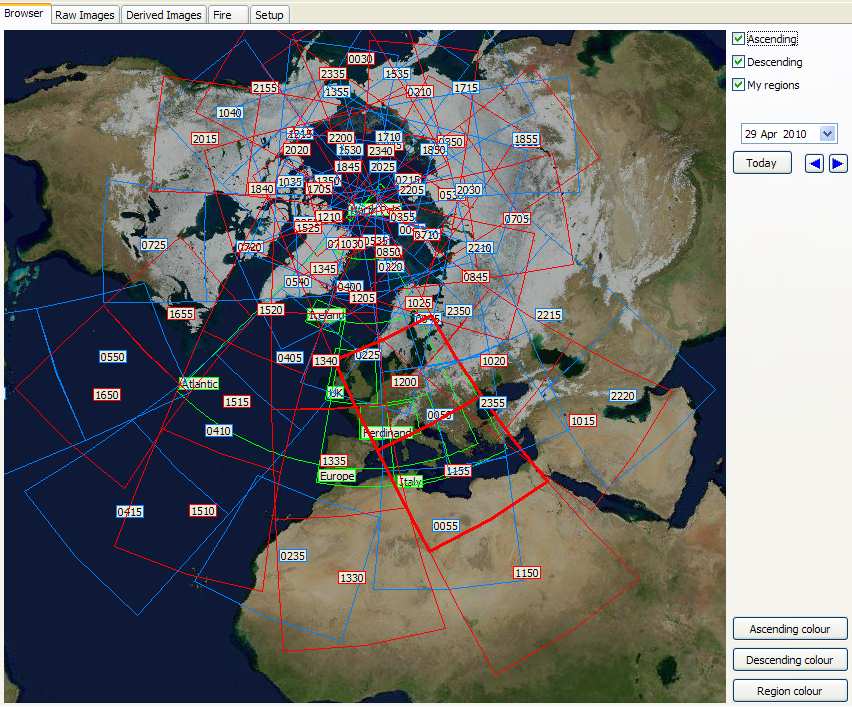
A: Perhaps the recent passes are ascending ones, and you don't have the
Ascending box checked?
Q05: Can I publish this data on my Web page?
A: Please see the Publishing Guidelines.
Q06: Why do I see a plain background in the World View
and Browser?
A: You can get just country boundaries following the steps in Q03
above. In versions V1.0.4 and higher, you can also place the UserMap.jpg
file in the same folder as the Metop Manager for a stunning world-map display
(such as that in WXtrack).
Q07: How do I manage ASCAT and GOME data?
A: To have the program manage GOME and ASCAT data, simply
enable reception of that data using the appropriate entries for recv-channels.ini,
and point the Metop Manager at the receive locations you have chosen.
For ASCAT data edit the recv-channels.ini entry for [EPS-3], and for GOME data
edit the entry for [EPS-5]. Ensure that the Process data box is checked on
the ASCAT and GOME tabs. EUMETSAT provide the EPSView
tool for visualising the data.
Q08: I run a wireless network between the receiver PC
and the processing PC, and I get some "Error processing file"
messages?
A: If the network connection between the receiver PC and processing PC is
slow (e.g. a wireless network at its range limit), files may not be completely
copied within a reasonable time limit, and hence the error messages. Be
sure that the network is working correctly, and is not marginal. You
should also be sure that you have a tmp_directory entry in your TelliCast
recv.ini file. There is more information here.
Q09: How can I view and process the .hpt files produced
by the Metop Manager?
A: You can use my free HRPT Reader software, which
you can register
to get increased functionality or just to say "thanks".
Q10: How do I get the new world-wide NOAA-18 AVHRR/GAC
data?
I understand this provides 24 hours/day, world-wide coverage.
A: The Metop Manager handles the new data. You also need to (1) have
requested the data from EUMETSAT (see the GEO
Guide here) and (2) added lines like
those below to your
TelliCast recv-channels.ini file. Point the Metop Manager at the
directories which contain the new data. Note that the AVHRR data is in GAC
format, so each 3-minute chunk is a maximum of 360 lines high, and each line is
409 pixels wide. The NOAA-18 & NOAA-19 satellites, unlike Metop, does not record full
2048-pixel resolution for each whole pass. The data is continuous,
world-wide coverage 24 hours a day, but as the data takes rather less than a
full orbit to transmit, there is a quiet period in between passes. You can
discuss the new data in the Metop
Yahoo group. When first setting up the
program, remember to set the "Processed global NOAA files path" to
where the new data and images should be saved. The software allows you to
combine images into a multi-minute pass, and save the image with the scanner
"distortion" removed, and presents a world-wide composite of the most
recent daylight data received.
TelliCast Recv-channels.ini sample entries - alter the directories to
suit your own needs, but please ensure that each data stream sends its data to a
separate directory, for example:
[EPS-10]
target_directory=received\EPS-10
[EPS-15]
target_directory=received\EPS-15
To point the Metop Manager to the data, in the Setup,
File Controls tab:
- Global EPS Metop Data, AVHRR tab, choose the EPS-10 directory for the AVHRR
"received files path".
- Global EPS NOAA Data, NOAA AVHRR/GAC "received files path" select
the EPS-15 directory. Q11: Do I need a bigger
RAMdisk if I add the NOAA AVHRR/GAC files to an existing Metop receiver?
A: Possibly not. On my system (which takes Meteosat-9, EARS AVHRR, Metop
AVHRR, and NOAA-18 AVHRR/GAC data) a 90MB RAMdisk appears sufficient, although
for a little margin a 120MB RAMdisk and file_database_size=125500000 is recommended.
Later: a 300 MB RAMdisk and file_database_size=307500000 is now the
recommendation for a full EUMETCast stream. Q12:
One person has reported incompatibilities with an ASRock K7S41 with AMD processor
system.
A: My own preference is for an Intel system, as I have had troubles with
AMD in the past. Q13: When I combine chunks, I get a number
of smaller images side-by-side, in two rows, instead of one big image when the combined data
is viewed in the HRPT Reader.
A: Perhaps you have the program pointing at the NOAA-18 AVHRR (GAC) data
on channel [EPS-15] instead of the Metop AVHRR data on [EPS-10]? Please
organise the directories in your recv-channels.ini file as shown above in Q10. Q14:
The boxes for previous chunks of data don't display on the World View or Browser
tabs.
A: Ensure that on the Setup, File Controls tab, File options box,
the "Dates in folders" box is checked. Q15:
My data stopped after 2011 Nov 15.
A: EUMETSAT changed to compressed data on some of the EPS streams.
Please update to the Metop Manager V1.4.12 or
later. Q16: I updated to V1.4.12 and now the
program halts with a message in the log like: "2nd retry failed, stopping".
A: Please be sure that "Save Data in EPS Format" is not
checked. It's in Setup|Fle Controls|Global EPS Metop Data|AVHRR|EPS
format. Q17: How can I receive the new Metop-B
data which started in November 2012?
A: Please see the section on Metop-B on the Metop
Manager's Web page. Q18: I can no longer
switch languages after setting up a Metop Manager for Metop-B data.
A: Likely you forgot to copy or rename the .LNG files. Q19:
How do I handle GAC data?
A: Enter a directory where NOAA-19 data can be found - usually
it's in EPS-15.
In instances other then your selected handler, ensure the
directory is a dummy (e.g. text like: '-a-dummy-')
Uncheck the "Is NOAA-19 handler" checkbox so
that already processed images are not deleted.
Q01: How do I enable boundary display?
A: Right-click the displayed image.
Q02: Why are some of the files truncated?
A: Only a limited amount of data is sent when a 5-minute chunk is near
the edges of the region of coverage. This is by design, and helps to keep
the broadcast file size down.
Q03: I get error error messages about mscvr80.dll being missing. This may also show as the message: Cannot find: DLL may be missing, corrupt or wrong version.
File hd424m.dll, error 126.
A: It's possible that you do not already have the Microsoft Visual C++ 2005 runtime libraries
installed on your system. Please try installing the redistributables from this page:
http://www.microsoft.com/downloads/en/details.aspx?FamilyID=32bc1bee-a3f9-4c13-9c99-220b62a191ee&displaylang=en
On one PC, these did not appear to install correctly, and the error message
remained. However, installing the Microsoft .Net framework version 3.5 on
the same PC did then result in correct operation.
Q04: Why isn't the data world-wide - like Metop-A data?
A: A full MODIS feed would fill EUMETCast many times over, so the data is
"thinned" before being relayed. Part of that thinning process is
to select data only over an extended Europe area. You can get an idea of
the coverage from this
screen-shot. The data is also thinned by selecting a subset of the 36
available channels, and by making the resolution of all the data a uniform 1km.
Q05: Where do I get the MODIS Fire data which the program can read?
A: You can register for the MODIS Fire data with EUMETSAT. It comes
on data channel 12, so you may need to add lines such as those below to your
TelliCast recv-channels.ini file. Your actual directory locations may
differ.
[EUMETSAT Data Channel 12]
target_directory=received\Data Channel 12
Q06: The program seems not to work with my version of Windows? I
have an AMD Athlon XP 2100+ Home SP3 with 1 GB of RAM.
A: One person reported that setting the right-click, properties,
Compatibility, "Run this program in compatibility mode for Windows
2000" allowed the program to work on his Windows XP Home system. As
the program was developed and extensively tested in Windows XP Professional SP3,
I'm not sure why this should be needed, unless there was a driver compatibility
issue. The PC quoted is more than adequate, although for general use I
would recommend more than 1GB of memory.
Q07: Which satellite is used for this data?
A: It is the Aqua
satellite. NORAD catalog number 27424 (add that to your Kepler
Updater),
which is in the Earth
Resources section of CelesTrak. From June 2011, data from the
companion Terra satellite
is also being sent to users over EUMETCast.
Q08: Why am I not getting the new data from the Terra satellite, which
was first disseminated in June 2011?
A: You will need version 2.5.48 or later of the MSG Data Manager, version
2 of the MODIS L1 Viewer, and a licence for version 2 of the viewer. An upgrade
licence is offered for existing users.
Q01: Why do I get no boundaries displayed?
A: Perhaps you did not copy Countries.dat into the folder where
MsgAnimator.exe lives. You can also right-click the animator icon to point
the animator to the country boundary file you want to use if it is located in a
different directory. Each
animation's Setup can have either no boundaries, or black, dark, light, white or inverse
boundaries. You can download the Countries.dat file from countries.zip.
Q02: Why do I get no city files listed on the setup
screen?
A: You need to copy the city data to the same folder as the
MsgAnimator.exe file. The files must be named starting "ci" and
be have the ".dat" file extension, so Cities.dat or Cities-UK.dat are acceptable
file names.
Q03: I changed my screen resolution and the Setup button is now
off-screen!
A: Right-click the animation window to access the Setup function.
Q04: Do I need to run the MSG Animator on the same PC
as the MSG Data Manager?
A: No, they can run on separate PCs, connected by a network. A
separate licence key will be required for each PC where the MSG Animator is to
be run, but for amateur use I will normally issue a second licence
free-of-charge. If
they are installed on the same PC, be sure that the MSG Data Manager is
installed and working before you install the MSG Animator. If installed on
a different PC, be sure to set the Setup, Updates to a value other than
"None". Note that if no other software from me is installed on
an isolated PC, you will also need to install the runtime Library
Bundle.
If the network traffic is a concern, or animations build slowly, try changing
where the temporary files are held. Stop the MSG Animator, edit the
registry key:
HKCU\Software\David J Taylor\MsgAnimator\TempPath
to point to a writeable location on the local PC, and restart the MSG
Animator. Note that the path should be terminated with a "\"
character.
Q05: I run the animator but nothing happens. Why?
A: The MSG Animator will appear as an icon in the system tray area.
Right-click the icon to activate the MSG Animator functions.
Q06: The MSG Animator cannot find the images to animate
on a same-PC installation.
A: Try stopping the MSG Animator and then deleting the registry key:
HKCU\Software\David J Taylor\MsgAnimator\DataPath
Note that the path should be terminated with a "\" character.
Q07: The data path is correct, but the MSG Animator
still sees no files?
A: Be sure that you have these two settings checked in the MSG Data
Manager: Full image paths, Dates in folders.
Q08: How do I get animations running on a networked-PC
installation?
A: You will need to do two things: (a) tell the MSG Animator where on the
network to find the image files, i.e. the location which contains the HRIT, LRIT
etc. folders. This might be something like: \\msg-pc\c$\msg\images\.
Do not include the HRIT part of the path name. (b) for each
animation, set the Updates to be the interval at which you want the MSG Animator
to check for new updates, e.g. every fifteen minutes. This is required
because on a networked installation the MSG Data Manager cannot talk directly to
the MSG Animator to tell it that new data has arrived.
Q09: I no longer get HRV
animations.
A: Be sure that both the MSG Data Manager and the MSG Animator are the current released versions.
You may need to check that both the Animator and the MSG Data
Manager are set to to the same HRV window setting.
MSG Data Manager: Setup, Advanced, Centre HRV window.
Select your choice from the drop-down list. Typically "Centred
on" Europe is a good choice, or Full if you have a powerful PC with
plenty of memory.
MSG Animator: for each animation, Setup, right-hand panel "Animation", towards the bottom: "HRV". There is a drop-down list of HRV region choices.
Choose the same region as
the MSG Data Manager is set to, e.g. Europe.
Q10: I see black clouds when animating channel 09 with
Land/sea palette on. I was expecting light clouds. I am missing some
palettes I used to have.
A: Don't forget to place LutLandSea.bmp in the same folder where MSG
Animator lives. You can copy the LUT files from, for example, a
GeoSatSignal installation. Be sure to use Right-click, Copy rather than
accidentally Moving the files out of your working GeoSatSignal installation.
Q11: When I switch from a Visible to an IR or WV animation,
the selection are settings are lost.
A: The satellites often have different numbers of pixels in the visible
and the other scans, so the program behaves as if you have selected a new
satellite.
Q12: I get some dots where I expect to get internal
country or region boundaries displayed.
A: The data file Countries.dat contains some duplicated lines, which
un-draw themselves when the Inverse boundary style is selected, leaving just
some dots. Use the "Dark" or "Light" boundary style
instead.
Q13: I moved my MSG Animator but it still uses the
original "Temp" directory. Animations are still stored in the
old location.
A: The MSG Animator remembers the setting between runs, by means of a string value stored in the registry.
Delete this string to make the animator choose its "Temp" path
afresh. Right-click and stop the MSG Animator. Delete the registry entry:
HKCU\Software\David J Taylor\MsgAnimator\TempPath. Restart the MSG
Animator.
Q14: The animation now shows as all black or all white?
A: Be sure you are running the current MSG Animator, as the issue was
fixed in V2.5.32.
Earlier information: sometimes the animation builder produces and all-black animation, even
though the individual frames are correct. If this happens, please stop the
animation, accept the warning that all frames will be deleted. Stop and
restart the MSG Animator program, and rebuild the animation. Changing the
size by a couple of pixels may work as well. You may need to try this a
couple of times. You may also find that unchecking the Smooth animation
option reduces the likelihood of this happening.
Q15: Why does data from the eastern parts of Africa on
the HRV channel stop after certain times of the day?
A: The scan position is altered from time to time, as shown in a 2.26
MB
animation from EUMETSAT. The scan is shifted westwards after a certain
time in the day.
Q16: Why do GOES or MTSAT animations not show with
land/sea boundaries when using a colour palette?
A: You need to either install GeoSatSignal on the same PC as the MSG
Animator, or perhaps better, copy all the files Mask*.png from a GeoSatSignal
installation to the same directory as the MsgAnimator.exe file.
Q17: Can I publish this data on my Web page?
A: Please see the Publishing Guidelines.
Q18: I upgraded to the MSG Animator 2.5 (or higher) and
my licence key is no longer accepted.
A: V2.5.0 was a major upgrade to the MSG Animator, and
required a new licence (which covers the more recent V2.5.2
and 2.5.4 as well). If you are an existing
user, you can get a reduced
price upgrade here. You should also provide the hardware
fingerprint for your system. You can upgrade all three programs in the
MSG Toolset Plus here.
If you have an older version, you may wish to back it up before overwriting with
the new version.
Q19: What settings do I need for Windows Vista?
A: Windows Vista is relatively new, and I have had to
make some minor program modifications to the MSG Animator to overcome the
problems which Vista has introduced (it does not support certain formats, for
example). Please read the release notes to establish how best to use the
MSG Animator with Vista. In particular:
- You must use the TAnimate display option.
- The TAviWriter_2 option is
recommended.
- You may not use GIF
animations.
- You may not use Compressed
animations.
Options (1) and (2) are set by right-clicking the MSG
Animator icon, and checking the required item.
Options (3) and (4) are set per-animation using the Setup option.
Q20: Animations don't work correctly in Vista.
A: Try this Microsoft
Patch
Q21: Since moving to Vista, my animations are much bigger, and I
sometimes get a "white-screen" instead of the animation. How can
I resolve this?
A: There appears to more problem as the size of the AVI file approaches
256MB, so do what you can to reduce the size of the animation. In
particular, removing the "Smooth animation" option will half the size
right away. (Thanks to Ian Deans for this suggestion).
Q22: I upgraded to V2.5.20 and now my HRV animations don't work.
A: As mentioned in the release notes, the HRV region setting changed a
single global value, to one you can set for each animation. Please check
that the HRV region setting is correct for each HRV animation.
Q23: How do I alter the region covered by an animation?
A: With animation displaying,
press the setup button (or use right-click, Setup). Press Define Area to
get the drag-border display. You may want to maximise the "Choose
region...." box to make viewing the full region easier. Use the "handles" at the corners and
at the middle of the edges to make the region as you want it. The mouse
cursor will change into direction arrows when you are over the handle. Over the central dark region itself, the cursor changes to a "hand" showing
that you can drag the region just where you want. When you are happy click OK to save your
setting, or Cancel to abort. If you have changed the animation, it will be
updated.
Q24: I run out of memory when using GIF animations.
A: GIFs are unsuitable for large or long animations, and are best
avoided.
Q25: How do I use the MSG Animator for Rapid-Scan or Parallel-scan
operation.
A: You need to set up the MSG Data Manager to have one instance for each
mode you want to support. So during 2011, for example, you would have
needed two instances - one for full-scan and one for rapid-scan. See here
for information on how to do this. At the end of 2012 you may need three
instances should you wish to capture full-scan, rapid-scan and the parallel test
data from the recently launched MSG-3. As the data from the three
instances will be stored in different sub-directories of the ..MSG\Images\..
tree, you can use just one MSG Animator instance and choose in the per-animation
setup whether this animation should be sourced from full-scan (nothing checked),
rapid-scan ("Rapid scan" checked) or parallel-scan
("Parallel" checked).
For parallel operation, you need V2.6.10 or
later of the MSG Animator. The image data from the MSG Data Manager will
be stored in:
..\Images\HRIT\ - full scan
..\Images\MSG-PAR\ - parallel scan
..\Images\MSG-RSS\ - rapid scan
..\Images\MSG-IODC\ - IODC Indian Ocean coverage
Q26: I am installing on a separate PC with Windows-7
64-bit, and the MSG Animator doesn't seem to work?
A: If you get an error message about "Missing VCL50.BPL" or other DLLs, you will
need to install the runtime Library Bundle on the PC where the
MSG Animator is to run. I have had one report that the program needed to be set into "XP
compatibility" mode before it would work on a Windows-7/64 system, but I have been unable to
reproduce that problem here.
Q27: I get a "No MCI device"
error.
A: Right-click the MSG Animator icon in the notification area, and check
that you have a valid directory specified in Options, Set output animation
path....
Q28: I would like to get a GIF output at
any time, e.g. for my Web site.
A: Use a program like ImageMagick to convert the temporary BMP files used
by the MSG Animator into a format you wish, such as GIF. This is likely
preferable to using GIF format within the MSG Animator itself. Here's an example for animation "2" (so all the files end in
"-2.bmp"), so you might use a command-line like:
_______________________________________
C:\Tools\ImageMagick-7.0.3-Q16\magick.exe ^
-delay 7 ^
D:\MSG\Images\Temp\*-2.bmp ^
D:\Temp\Animations\output.gif
_______________________________________
I spilt the command-line into parts to make it easier to see:
- the full path to the ImageMagick executable
-delay 7 - adjust to suit the speed of the GIF output
- *-2.bmp - wildcard to find animation number "2" images
- output.gif - your choice of output file name
Q01: Why is the HRV image split?
A: The downlink from the satellite does not have enough bandwidth for
the full HRV image, so a compromise is adopted whereby only half the scanned
image width is sent down to the ground, but that half-width is moved during the
scan to cover both Europe in the northern part and Africa in the southern
part. During the afternoon, the southern part of the scan is moved to
track the sun. This is likely to be the final format, and the MSG Data Manager
correctly handles such split images. The image is transmitted in this
format - it is not an error or defect. There is a 2.26 MB animation from EUMETSAT showing this here.
The full HRV image can occupy 118MB (354MB in colour) which can be a lot to
handle, so the MSG Data Manager makes provision for you to minimise the both the
amount of data collected and the amount of data saved. There are two
settings controlling this:
- Width and Centring: Setting the "Centre HRV window, Centred on" in the Advanced Setup dialog determines both the width of the image and where the image is
centred relative to the full HRV disk.
- Full means collect a full-width, 11136 pixel wide image
- Wide covers all of Europe and most of Africa, but not the extreme evening westerly southern scan.
7680 pixels wide.
- Africa, Europe and Greenwich are each 5568 pixel wide images but aligned differently. Africa is the east part of the full disk. Greenwich is the central part of the full-disk image. Europe approximately matches the northern scan, and is probably the best compromise.
- Saved Image Height: With all settings, a full height image is
collected as the segments are broadcast. However, you can save on disk space, and on memory when processing, if you only save that part of the earth which interests you. As some people are primarily interested in Europe, there is an Advanced setup option which allows you to save just the "northern" part of the image rather than the full-height image. If you uncheck "Save full HRV", only the top part of the image,
3248 lines, corresponding approximately to the northern part of the HRV scan, will be saved.
Q02: The HRV image seems to move slightly during the day,
quite apart from the region switch.
A: The rectified image from the satellite does move slightly, you need
to use the information in the prologue file to position the image
correctly. In the MSG Data Manager, Setup, Advanced..., Centre HRV
window, ensure that both Upper and Lower options are checked.
Q03: HRV animations seem blurred.
A: Switch off any in-between frame interpolation in your animation
program. This is really a personal preference.
Q04: Why are there some segments missing - it spoils
my animations!
A: Probably, your signal is weak or you are running a CPU-intensive task
on the Receiver PC. Uncheck Clear Images on the Setup tab if you prefer to have older data
rather than missing segments. See the Missing
Segments Checklist for possible causes.
Q05: I keep getting "Parameter is incorrect"
message.
A: This can be caused by the use of a non-supported OS, or by network problems seen by the MSG Data
Manager.
- If you are using Windows 98, 98SE or Windows ME, be aware
that these are not supported OSes.
- If you must use Windows 98 etc.
- ensure that the swap file is fixed
at twice physical memory.
- that your memory is at least 512MB.
- that you process the minimum number
of channels.
- Ensure you are running the current version of the MSG Data
Manager.
- Ensure that the Setup, Received files location is correct.
- Check that you can see (from DOS or Explorer) files in the
Setup, Received files location.
- Try disabling the disconnect timeout for network shares (see: these
articles Microsoft
& Tech
Republic).
Q06: I seem to have run out of file space on my FAT32
system, but I only have about a day's worth of data (10,000 files).
A: Because of the long file names used, the FAT32 file capacity is
reduced from 64K files, so use the NTFS file system instead. Means you must
run Windows 2000/XP on the Receiver PC or Processing PC if you wish to retain
the files.
Q07: Why am I not getting LRIT data?
A: Did you add the PID for LRIT data in Setup4PC (decimal: 301,
hex: 0x012D)? Please note that for the EUMETCast service, EUMETSAT stopped
the Meteosat-9 LRIT data on 2011 Jan 18. The other data on PID 301
continues, and LRIT data can still be obtained over the FTP service and by
direct dissemination.
Q08: I am having problems setting up the TelliCast
software
A: Perhaps the EUMETSAT
Trouble-shooting Guide or Bepi's step-by-step
Guide may help?
Q09: I get some missing segments, but the signal level
is good, and the Transponder Status screen shows no uncorrected blocks.
A: You may be overloading your Receiver PC with CPU-intensive
tasks. If not, you may need to set the buffering option in the TelliCast
recv.ini file. Try replacing the line: "log_file=recv.log" with
"log_file =>> recv.log". Be sure that you have fast disks on the
receiver PC (i.e. ones with an 8MB buffer and a UDMA 66/100 or SATA interface).
More suggestions.
Q10: I upgraded and now the program no longer
processes data, but appears to run?
A: Please check that your registration code is correct. If your
licence code is no longer accepted, please see Q34.
Q11: Why, on Foreign Satellite Data (FSD) images are
there sometimes missing segments that are not multiples of 464 lines in height,
or have curved edges?
A: The images were acquired in this state at EUMETSAT, it is not a fault
of your setup.
Q12: Why do I sometimes see slightly curved lines on
the images?
A: This is where one or more of the raw detector scans has not reached
the processing station. They are curved because the satellite is not
precisely at its nominal location (for example, MSG-1 is at 3.4°W not 0°) and
because the satellite's axis may not be quite parallel with the earth's axis, and
the images acquired by the satellite are processed to correct the
viewpoint. A straight line can therefore become curved after processing.
Q13: I upgraded to V1.3.4.351 (or later) and I no
longer get Met-5 IODC data.
A: Until April 27 2004, Met-5 data was being broadcast as part of the FSD
service, and you needed to have the "Use FSD (MSG1) Met-5 data" box
checked. It is on the Setup -> FSD tab. After that date, be sure
to clear the checkbox.
Q14: I upgraded to beta V1.3.6 and no longer get HRV
animations.
A: Be sure to upgrade both the MSG Data Manager and the MSG Animator.
Q15: I changed to the HRV wide option and now my
false-colour images seem to have the colour and brightness parts not correctly
aligned, or, some full-scan channels are not showing the full-height image.
A: The program has retained the old width for the HRV data, because you
made the change while a cycle was running. Please carry out the following
steps:
- Uncheck "persistent images" on the Setup tab, Program controls
box.
- Wait for the end of a 15-minute cycle.
- Optionally, move the most recent 12nw.jpg file temporarily somewhere else.
- Stop and restart the program.
- Reset "persistent images".
The program should not attempt to reload the existing channel 12 image, but
moving it out of the way ensures that it won't find it. This problem can
also be seen on other channels, if the saved image was in some way corrupt.
Q16: Why did data stop after 2004 September 30?
A: The transponder frequency on the previous satellite was changed to 10853MHz.
Q17: What are the files named AMSU... and HIRS...?
A: These are files of ATOVS data from EUMETSAT Data channel 1. The
MSG Data Manager can process these files if you enable the Manage box on the
Setup, Channel selection, Other page.
Q18: I am having problems with EUMETCast reception.
A: Please see the EUMETCast
Troubleshooting Guide.
Q19: I only have 512MB of memory and it's running
out! What can I do to minimise memory consumption?
A: Disable reception of the following channels, in suggested priority
order: (1) all Met-8 LRIT channels (the data is duplicated in the HRIT), (2) all Met-7 data
(duplicates Met-8 coverage), (3) Met-8 HRIT channels 7, 8, 10, 11, (4) Met-5 WV data (unless you need it), and Met-8 channels 5 & 6.
Q20: Why did CLAI or CTH images stop after 2005 June
21?
A: The data format was changed by EUMETSAT from images to GRIB2, so there
is no image data to display.
Q21: Why is data in the TelliCast received folder is
not being deleted? This can also be seen as: each time I load the MSG Data
Manager it takes a very long time to start, a large number of files are listed
on the status line, and it starts processing file from previous days. The
program may even stop with an "out of memory" message.
A: First, you should check the box marked "Delete files from
RX" in the Setup, File options panel. If this is checked but the
files still are not being deleted, ensure that the program has write access to
the directory where the files live. This might mean checking the permissions
on the folder of, if you have a two-PC installation, checking the permissions on
the network share. On Vista or Windows-7 you may need to both (a) set the
network share for "users can delete my files, or have full access",
and (b) set the file access on the \received\ tree to "Everyone, full
access".
Q22: GOES-9 (GMS) data stopped after September 14,
2005.
A: The data was replaced by data from MTSAT-1R. You may need
updated software - check you have at least V1.5.4 of the MSG Data
Manager.
Q23: Meteosat-5 and Meteosat-7 data stopped after 2005
October 25.
A: You may need updated software - please update to V1.5.4 or later of the
MSG Data Manager.
Q24: All data stopped after a particular date.
A: Please check that you are using the current version of the
software. Beta versions may be subject to a time-out limit.
Q25: Why does data from the eastern parts of Africa on
the HRV channel stop after certain times of the day?
A: The scan position is altered from time to time, as shown in this 2
MB
animation from EUMETSAT. The scan is shifted westwards after a certain
time in the day.
Q25A: Why do I get a ragged edge to the eastern part of the HRV
image? I have "Clear images" unchecked as it gives me better
animations. My image looks a little like the one at the right.
A: As mentioned in Q25, the scan on the southern part of the image moves
progressively to the west during the day to follow the sun. As you have
Clear Images unchecked, the more western part of the scan does not overwrite the
older, eastern part of the scan with new data, and hence you have data which is
progressively older as you go from the western-most strip of the image to the
eastern-most. This is not an error, and the program is working as
intended.
(My thanks to Arne van Belle for the image). |

|
Q26: Since early August 2006, I have been getting lots
of missing segments on the Foreign Satellite Data (FSD).
A: Check that you have upgraded your TelliCast client software to V2.4.4
B. If you do not have this update, please contact
EUMETSAT.
Q27: 12-channel image data stopped in the afternoon of
2006 September 23. Please note that this outage was fixed on 2006 October
10, at 09:00 UTC.
A: A problem developed with MSG-1 satellite, and EUMETSAT are now feeding
SEVIRI data from MSG-2. You may need to take a number of steps to restore
images:
- If you are not already running the current version of the MSG Data Manager
(the one with multiple Detail Image tabs), you should download the current version.
Please note that there is a small
charge for this upgrade. Amateur and Educational users can also upgrade
all three programs in their existing MSG-1 Toolset Plus. If you already have the MSG Data Manager V2.5.0 or later,
you do not need to upgrade again.
- Be sure that you have installed the MSG Data Manager
V2.5.2 or later (Help, About menu).
- You should download and install the MSG Data Manager beta
version V2.5.4,580 or later because only this version supports the mixed MSG-2 HRIT data and MSG-1 GOES/MTSAT data
currently being sent.
- Note that full versions are full installs (about 2.3MB
download), and you can install on top of an existing version (be sure to
close the program first, of course!). The beta version (about 600KB
download) contains just the .exe file which you copy yourself on top of the
installed version. You cannot use just the beta version!
- If you are unsure about using beta software, please read the information
here.
- Run the program, but do not press the Start button.
- Select the Setup tab.
- Press the Advanced... button.
- Select the MSG-2 satellite from the drop-down list (near the OK
button).
- You may get a reminder message to restart the program.
- Ensure that Satellite, Delete other is unchecked.
- Click OK to close the Advanced setup dialog.
- Select the Channel selection, FSD tab.
- Ensure that Generic naming is checked.
- Close the program and restart.
- Warning: if you have not cleared out the
files in the TelliCast received folder, it may take a long time for the
program to start processing files (perhaps ten minutes per day of
accumulated files). Four days worth of files could be 40GB, if you
were wondering where your disk space had gone, and might take 40 minutes to
start processing!
This should restore SEVIRI image data, the foreign satellite data, and the Met-5
and Met-7 data (according to your licence). The DCP/IODC, DCP/WMO/IODC,
MDD1 and MDD2 data had not been transferred to the MSG-2 service at the time of
writing, so would need to be copied manually. The service messages appear
to be duplicated between MSG1 and MSG2, so you can just delete the MSG1 version
of the messages from the TelliCast received folder once a day. If you
still don't get both HRIT and FSD images, please double-check on the program
settings listed above.
Please ask on the MSG-1
or SatSignal self-help group for more information.
EUMETSAT resumed normal service on Tuesday, October 10,
2006 at 09:00 UTC, and you should once again select the MSG-1 satellite and
restart the MSG Data Manager.
Q28: I can't get colour palettes working.
A: Please ensure that you have both colour palette files (such as LUTLandSea-WEFAX-visible.bmp
and LUTLandSea-zw.bmp) and the land-sea mask files (such as MaskMet8FD.png)
installed in the same folder as the MSG Data Manager. Normally, the
program will look for the land-sea mask files in your GeoSatSignal folder, but
you may not have that program installed and running.
You can install and run GeoSatSignal without a licence key, but only as a 30-day
trial. Just run it once so that the MSG Data Manager can find the mask
files. If you want to continue to use GeoSatSignal after the 30-day
trial period, you can buy a licence here.
Q29: I select a colour palette for a thermal channel on
the detailed image display, but I get no colours.
A: Please be sure that, on the detailed image, the right-click, Image enhancement is set to
"(none)". With a thermal image, applying any enhancement
such as "histogram equalisation" or "stretch" destroys the precise
grey-level to temperature mapping on which the LUTs rely.
Q30: I select a colour palette for a thermal channel on
the detailed image display, but I get the wrong boundaries.
A: Be sure that you have the appropriate Land-Sea masks. Either
install and run a copy of GeoSatSignal on the same PC, or copy the Land-Sea mask
files (Mask*.png) from a working copy of GeoSatSignal. Please note that these files
may updated from time to time.
Q31: I get an Error 126 - WaveletDLL.dll is missing.
A: One cause is that you are using a beta version, without copying
it on top of a working full install. Please install the MSG Data Manager
from the most recent current release, and then
follow the instructions for using beta software.
Q32: I just moved my TelliCast received files, and now
I get no data
A: Be sure to tell the MSG Data Manager where the new data is
located. Use the Setup tab, File; File controls panel; TelliCast received files location control.
Use the Browse button to location the C:\Tellique\received\ folder. As there may be a number of
hours of data to process, the initial run of the MSG Data Manager may take some time.
Q33: Can I publish this data on my Web page?
A: Please see the Publishing Guidelines.
Q34: I have version 1.x of the MSG Data Manager, and my
licence no longer works in V2.5 and later.
A: V2.5.0 was a major upgrade to the MSG Data
Manager, and requires a new licence (which covers the more recent V2.5.2 and 2.5.4 as well).
If you are an
existing user, you can get a reduced
price upgrade here. You should also provide the hardware
fingerprint for your system. You can upgrade all three programs in the
MSG Toolset Plus here.
If you have an older version, you may wish to back it up before overwriting with
the new version.
Q35: I am using a beta version, and the aspect ratio of
the GOES-E WV thumbnail is wrong, and sometimes it has white lines?
A: Please wait until the 3-hourly GOES-E WV is disseminated at the same
resolution as the 1-hourly data (2007 Jan 30), and this problem should
disappear.
Q36: How do I get the hourly FSD fill-in data?
A: This data started on 2007 Jan 30. The information below
is preliminary. A number of steps are required:
- Complete the EUMETSAT form or e-mail EUMETSAT Ops to have
the data added to your eToken.
- Check that you have the current versions of the
MSG Data Manager (V2.5.18.742 or later) and MSG Animator (V2.5.18.209 or
later).
- Ensure that you point the data stream from [EUMETSAT Data
Channel 4] either to your \received\ directory or your \received\Data
Channel 4\ directory. This may require editing your recv-channels.ini
file.
- On the MSG Data Manager, Setup, Channel selection, FSD tab,
ensure that Hourly FSD is checked.
Q37: Why is the hourly data from GOES-E and GOES-W
incomplete?
A: The schedule for the GOES-E and GOES-W satellites varies from hour to
hour. In particular, unlike the EUMETSAT and Japanese satellites, they do
not provide an hourly scan of the whole earth disk. Instead, they have a
3-hourly full-disk scan, and a more frequent higher-resolution scans of other
regions such as the North American region, hurricane regions etc.
Consequently, the hourly data varies in visible content with the 0300, 0600 etc
scans being full-disk, and the intermediate scans (0100 0200 0400 0500 etc.)
just covering North America. If you are animating South America, you may
prefer to use just the 3-hourly scans.
Q38: What settings do you recommend using with the
Meteosat-9 (MSG-2) data which
came on-stream on 2007 April 11, replacing the Meteosat-8 (MSG-1) data which
stopped on 2007 May 10? EUMETSAT
information about this change.
A: There is no need to change anything in your SkyStar DVB or TelliCast
client settings. The intention in the MSG Data Manager settings below is that source data other than MSG-2 will not be deleted,
and that FSD labelled MSG1, MSG2, MSG3 or MSG4 will be accepted and processed. First,
be sure you are running the MSG Data Manager V2.5.6.652 or later - the current
version is here. Please update your
software if the Help, About shows a version number less than V2.5.6.652.
- Setup; Channel selection; FSD; Generic naming: checked
- Advanced Setup; Satellite: MSG-2; Delete other: not checked
Please note that after changing the Satellite in the Advanced Setup a program
shutdown and restart is required, and you will get a reminder message about
this. Acknowledge the reminder (OK), and close the Advanced Setup
with an OK as well. Then stop the MSG Data Manager with the Stop button.
Press the Close button to exit the program, and start it once again. As
a check, in the Logs window you should see a message like: "Program V2.5.8.657 start on MSG-2"
confirming that the MSG-2 satellite has been selected. Now press the Start
button. There may be a short delay if you have a backlog of the new MSG-2
data to process. Remember to close down and restart the MSG Data
Manager after changing the satellite!
If you still have the older MSG Data Manager version 1 (retired in December
2005), you will need to upgrade to the current version. You can download
the software here, and have 30 days to
evaluate it. If you are an existing user, you can either upgrade
the MSG Data Manager alone or, if you have the MSG Toolset Plus, you can upgrade
all three programs.
Q39: I didn't get an e-mail about the MSG-1 to MSG-2 change. How
can I be sure of knowing next time?
A: Subscribe to the EUMETSAT
User Notification Service and select Operations Weekly Schedule.
Be sure to join the MSG-1
self-help Group where there are over 800 fellow users who can help you.
Q40: The MSG-1 and MSG-2 pair have been used for both parallel
operation, and full/rapid scan operation. Can I process both MSG-1 and MSG-2 data?
A: Yes, by using two instances of the MSG Data Manager you can process
two independent data streams. Please see the answer for RSS
operation here - adapt it if you need parallel operation.
Q41: MSG-1 Rapid Scan data is no longer correctly vertically aligned
for channels 1 to 11. It was OK until 2007 July 16.
A: EUMETSAT changed the Rapid Scan data to conform with the full-scan
data on July 16, rendering the corrections included in the MSG Data Manager
since 2003 no longer required. Until a new full MSG Data Manager is
released, please install the beta version. I
understand that further changes are still in the pipeline.
Q42: From 2007 October 04, I have started receiving data from Goes-E and GOES-W 3.9μm
channels that are not handled by the current MSG Data Manager - version V2.5.8. Is there an update?
A: You can use the beta version of the MSG Data Manager for the new data.
You can download it here. Once the new beta version has been proved
by widespread use, I will release it as a new "official" version. Your existing licence
key will continue to work, and there is no upgrade charge.
Q43: I hear that Meteosat-9 data will be replaced by Meteosat-8 data
for a week in December. Data stopped on 2007 Dec 03 at 12:00. This
also applies to the MSG-2 events which happened on 2009 Apr 17 and on 2009
August 15.
A: Please see this
EUMETSAT notice (2007) and later. If you did not know about the change, consider
getting the notices delivered automatically by e-mail from the UNS
service. Check back here if the changes suggested below haven't worked for
you, and please monitor the
messages in the MSG-1 self-help group.
- You will need the MSG Data Manager
version 2.5.12 or later. The update to the current version is free for registered V2.5
users.
- On the Channel Selection, FSD tab, ensure that "Generic naming "
is checked.
- In Setup, Advanced..., Satellite, you should currently be using the MSG-2
satellite. Ensure that "Delete other" is not checked.
- After 12:00 UTC on Monday December 03, press the Stop button on the MSG
Data Manager and, in Setup, Advanced..., Satellite, select MSG-1, and close
the Advanced setup dialog. There may be a warning message reminding
you to restart the program.
- Close down the MSG Data Manager.
- Restart the MSG Data Manager, and you should have a normal data
flow. Note that the output file names are the same, and no changes to
either the MSG Animator nor GeoSatSignal should be required.
- If there are any products missing after the change, please ask in the MSG-1
self-help group, as you may not be alone!
- After 12:00 UTC on Tuesday, December 11, reverse the above process by
stopping the MSG Data Manager, selecting MSG-2, closing down the MSG Data
Manager and restarting it.
Remember to change any other retrieval programs you may be running such as AutoGet.
If you are reading this after 12:00 UTC on 2007 December 11, it's all over, and
you can revert to your normal MSG-2 settings. At least, until the next
time! In 2008, normal service should be restored on Tuesday Dec 09 at 1200
UTC.
Q44: After running some MSG-1 parallel running data through the
system, why do I get a "floating point error" when restarting?
A: Some data has been stored as zero, instead of an actual value.
Please use the following procedure to clear it out. Create a restore
point, just in case. Using the registry editor, locate the registry key: HKEY_CURRENT_USER\Software\David J Taylor\MsgDataManager.
Delete the values: CalOffset01 to CalOffset12, and CalSlope01 to CalSlope12.
Q45: On or after 04 March 2008, I keep getting the error message:
"Column count (2752) wrong in segment".
A: Please upgrade to the released MSG Data Manager version V2.5.14 or
later. The current download is here. This version is required for the new MTSAT-1R data which EUMETSAT
started disseminating on March 04. If you are unable to update to the new
version, just uncheck the MTSAT-1R Vis, IR, WV, and mid-IR data in the Channel
selection, FSD dialog.
Q46: One or two people have reported problems which may be related to
virtual memory size growing with V2.5.14/16.
A: I have located the problem, and the problem code is disabled by
default in V2.5.18. Discussion of the
current results is in the SatSignal
self-help group.
Q47: DCP data stopped after 25 March 2008.
A: EUMETSAT moved this data to a new stream named [EUMETSAT Data Channel 9].
You will need to add an entry in your recv-channels.ini file to direct the new
stream to wherever data channel 3 data is currently sent. Do not
change your existing entry for data channel 3.
Q48: Can I process both Meteosat-8
Rapid Scan and Meteosat-9 full-scan data?
A: Yes, by using two instances of the MSG Data Manager you can process
two independent data streams. However, these two instances must be
completely separate, installed in a different directory, and with different file
names. It's a little complicated, so please follow the steps carefully and
avoid overwriting your existing data. There is a Yahoo
Rapid-Scan group you can join to ask questions and you can read more EUMETSAT
information on the Rapid Scan Service. You can also use this method to
process the "parallel running" data sent between 2012 and 2013 as
EUMETSAT transitions from Metoesat-9 to Meteosat-10 as the prime satellite.
Please note: from early 2013, the Rapid-scan data was supplied by MSG-2,
and the full-scan data by MSG-3, and later MSG-4 is full scan, MSG-3 is rapid
scan, with MSG-2 as full-in rapid-scan, with MSG-1 providing Indian Ocean
coverage. Please bear this in mind when reading the
following instructions.
- If you have not already done so, apply to EUMETSAT to be enabled for the
RSS or MSG-3 data.
- Be sure to update your MSG Data Manager to the current
release version (V2.6.6 or later).
- Ensure that PIS 500 (decimal) is enabled in your receiver software.
- Configure your TelliCast recv-channels.ini file to send [EUMETSAT Data Channel 5]
and [EUMETSAT Data Channel 6] files to new, different directory. For example, if your Meteosat data is
sent to D:\EUMETCast\received\, you could add the lines:
[EUMETSAT Data Channel 5]
target_directory=D:\EUMETCast\received\RSS
[EUMETSAT Data Channel 6]
target_directory=D:\EUMETCast\received\RSS
- Or for parallel running:
[EUMETSAT Data Channel 15]
target_directory=D:\EUMETCast\received\Parallel
- Create a directory for the new instance of the MSG Data Manager program
itself, e.g.
C:\Tools\SatSignal\MsgDataManager-RSS\
or
C:\Tools\SatSignal\MsgDataManager-Parallel\
- Copy (and not move!) all the files from your existing MSG Data Manager
directory to this new directory, including any support DLLs such as
JPEG8support.dll, excepting any log files (*.log).
- Rename all the MsgDataManager files to a set with different, but
consistent names. Note that only the .exe, .chm, and .lng files
should be renamed. For example:
- MsgDataManager-RSS.exe
- MsgDataManager-RSS.chm
- MsgDataManager-RSS.ntv.lng
- .. and for all the other language files
- Alternatively, you could achieve the required file copies and renames automatically
by using a command file in your existing MSG Data Manager directory, containing
commands such as:
copy MsgDataManager.exe
C:\Tools\SatSignal\MsgDataManager-RSS\MsgDataManager-RSS.exe
copy MsgDataManager.chm C:\Tools\SatSignal\MsgDataManager-RSS\MsgDataManager-RSS.chm
copy MsgDataManager.*.lng C:\Tools\SatSignal\MsgDataManager-RSS\MsgDataManager-RSS.*.lng
pause
Copy and paste the four lines above into a new file called, for
example, REN-MSG.cmd. This allows you to update your rapid-scan software directly after
updating your main MSG Data Manager software. The pause statement simply allows you to examine what has happened.
Please ensure that both copies of the program are stopped when doing such an
update.
- Note that should you be using directory names with embedded spaces,
you need to enclose the full path in quotation marks: "C:\Tools\MSG
RSS\MsgDataManager-RSS.exe"
- Configure the new RSS MSG Data Manager:
- to accept files from D:\EUMETCast\received\RSS\ (TelliCast received
files location from the ini file).
- or D:\EUMETCast\received\Parallel for
parallel scan
- to write raw data to the same directory tree as the existing program,
or elsewhere if you wish.
- to write image data to the same directory tree as the existing
program (for Rapid Scan operation).
- to write image data to a different directory tree as the existing
program (for Parallel operation).
- the rapid-scan image data will be written to a separate directory: \Images\MSG-RSS\, with names unique
to the rapid-scan service images, e.g. 200805061310-rss-ch02.jpg.
That is why there is no need for you to create a separate \Images\ directory tree
for RSS working.
- the rapid-scan meteorological products will be written to: \Images\MPEF-RSS\,
with identical file names to the full-scan products, e.g. 200807291415-mpe.grb
- set all the retention times to zero on the RSS MSG Data Manager!
- Important! Remember to configure the RSS MSG Data Manager to look for MSG-1 and not MSG-2
data, or the parallel-scan instance for MSG-3.
That's on the Setup page, Advanced..., Satellite, and select MSG-1 from the
drop-down list. The program will warn you to restart the MSG Data
Manager to pick up this new setting. Leave the "Delete
other" box unchecked.
- Important! Remember to set the Retention periods on the
RSS or Parallel MSG Data Manager to zero for any data you wish to retain from the original
MSG Data Manager. Otherwise the default 1-day retention of data will
be applied to all your saved data. While the retention periods are
separately stored, you may be applying them to the same \Images\ tree.
If you fail to do this you may lose your previously saved data!
- Important! If you copy the segment history file
SegHistory.log the program may report on the previous incarnation's
satellite!
- The image data produced from rapid-scan will be full size, but with the active data only
occupying from about 15°N - 65°N.
- The thumbnails will have a distinctive appearance
to show that rapid-scan data is being processed.
- The current version of the MSG Animator
knows about the rapid-scan and parallel-scan file names and directories.
- The current release of
GeoSatSignal (version 7) supports rapid-scan and parallel-scan plus
much more.
Q49: My TelliCast folders are filling up with files like: NPR.EDEB.SA....
Why doesn't the MSG Data Manager delete these files?
A: One of the design guidelines for my software is that it will not touch data which
it is not designed to handle. Therefore, the only folders which it scans are, in accordance with a previous EUMETSAT standard:
\received\
\received\Data Channel 1\
\received\Data Channel 2\
\received\Data Channel 3\
\received\Data Channel 4\
In addition, that convention is extended for some more unusual channels:
\received\Data Channel 11\ (was: CMA - Chinese image and
meteorological data)
\received\Data Channel 12\ (CMA data and MODIS fire products)
\received\BMD-RA-VI\
\received\DWDSAT\
(DWDSAT data, basic and subscription)
So if you have put data in folder named, for example:
\received\Americas-Ch1\
\received-Americas-Ch1\
\Americas-Ch1\
then it is completely invisible to the MSG Data Manager, and you would need to manage those files yourself.
In fact, files on the [Americas CH1] stream like the NPR.EDEB.SA.... one
mentioned are not handled at all by the MSG Data Manager.
Postscript: there is now a version of the MSG Data Manager
available (versions V2.5.23.817 and later) which can clean out all files in the
\received\ directory and the directories and below, whether or not those
files are ones which the MSG Data Manager normally processes. You can try
this version if you like, and set the Options, Auto-clean minutes to a non-zero
value. I am using this new function with a setting of "1440 minutes" on
one of my systems which collects Metop data, but does not process it, and it
appears to work well.
Q50: My data stopped after 2008 December 17.
A: EUMETCast moved from the Hotbird-6 satellite at 13° East to
Eurobird-9 at 9° East. You will need to move your satellite dish to
the new location, and update the database in your receiving software.
There is no change needed to David Taylor's software after the move.
Please see:
You can find lots of help about making the changes on the MSG-1
self-help group.
Q51: RII data stopped after 21 January 2009.
A: EUMETSAT moved the RII data from [EUMETSAT Data Channel 3] to
[EUMETSAT Data Channel 4]. The MSG Data Manager V2.5.26 will only scan
\Data Channel 4\ if either the hourly FSD is selected, or if the SAF MODIS Winds
is selected. This may be changed in a future release.
Q52: I applied for access to the CMA data for
FY-2C/FY-2E
images, but I see nothing in the MSG Data Manager?
A: Please ensure that you have an entry for [EUMETSAT Data Channel 12] in
your recv-channels.ini file. This entry can either point to your general
\received\ directory, or \received\Data Channel 12\ as in Q49 above. To
enable processing of the FY-2C/FY-2E data, go to the Setup, Channel Selection
tab, and on the FSD page, Ch.11 or 12 data (CMA), check Manage CMA data, and check the six FDI boxes.
Q53: CMA data stopped around 0900 on 2009 Feb 16.
A: The file extension for the CMA data was changed from .Z to .gz, and
you will need to update to the MSG Data Manager V2.5.28 or higher to process
the new extensions.
Q54: I'm running two MSG Data Managers for normal-scan
and rapid-scan, and now my FSD (foreign satellite data) images are very
incomplete.
A: Ensure that you are feeding the Rapid Scan data from [EUMETSAT Data
Channel 5] and [EUMETSAT Data Channel 6] into a separate received directory by
editing your recv-channels.ini file as described here.
Otherwise both copies of the MSG Data Manager may try and process the FSD files!
Q55: I changed nothing, but some data such as SAF and
MPEF stopped after 2009 Mar 31.
A: After March 2009, EUMETSAT introduced a registration requirement for EUMETCast access to all level 2 satellite products generated by EUMETSAT
and the Satellite Application Facilities (SAFs), to allow EUMETSAT and its SAFs greater visibility of product usage.
New EUMETCast users are able to select their choice of level 2 products (Meteosat, Metop/NOAA, Ocean Sea Ice, Land Surface Analysis and
Ozone & Atmospheric Chemistry) via the online registration form. Existing EUMETCast users may request a continuation of access to these
products by sending an email to the User Helpdesk via ops@eumetsat.int
Q56: I upgraded to beta version 2.5.33 and I now get a
message about JPEG8support.dll being missing, error 126.
A: You missed copying the file: JPEG8support.dll from the Zip file to the directory containing MsgDataManager.exe. Please be sure to copy all 10 files from the Zip archive to the working directory.
Q57: GOES-East data stopped after 2010 April 14.
A: GOES-12 was replaced by GOES-13. Please update to version
2.5.38 or later of the MSG Data Manager.
Q58: Where has the LRIT data gone? Why is there a
tab labelled LRIT when there is no data there?
A: EUMETSAT have stopped sending the LRIT data in January 2011, because
it just duplicated the HRIT data at a lower quality. There is a check box Show MSG LRIT
tab
in Setup|Options, and this box can now be unchecked. The change will take effect the next time you start the MSG Data
Manager.
Q59: What is the MTSAT tab for? Don't we already
get data from MTSAT on the FSD tab?
A: EUMETCast users in Europe will get the MTSAT data on the FSD tab, so
the Setup|Options Show MTSAT HRIT tab can remain unchecked. If you
get direct MTSAT data (i.e. you live in Asia) or if you download MTSAT HRIT
segment data from the Internet, check the box to display the processed data.
Q60: I can no longer switch languages after setting up
an MSG Data Manager for Rapid-Scan or Parallel data.
A: Likely you forgot to copy or rename the .LNG files.
Q61: What settings do you recommend using with the
Meteosat-10 (MSG-3) data which
came on-stream on 2013-Jan-21, replacing the Meteosat-9 (MSG-2) data? EUMETSAT
information about this change.
A: There is no need to change anything in your SkyStar DVB or TelliCast
client settings, but I do suggest you update to V2.6.10
or later. The intention in the MSG Data Manager settings below is that source data other than
MSG-3 will not be deleted,
and that FSD labelled MSG1, MSG2, MSG3 or MSG4 will be accepted and processed.
First, stop the MSG Data Manager processing (press the button marked Stop with the
bright green LED) and then go to the Setup tab and make the following checks and
changes.
- Setup => Channel selection:
- FSD; Generic naming: checked
- Click on the "Advanced" button. In Advanced Setup:
- Satellite: choose MSG-3 from the drop-down list. Note warning
message.
- Delete other: not checked
Please note: after changing the Satellite in the Advanced Setup a program
shutdown and restart is required, and you will get a reminder message about
this. Acknowledge the reminder (OK), and close the Advanced Setup
with an OK as well. Then stop the MSG Data Manager with the Stop button.
Press the Close button to exit the program, and start it once again. As
a check, in the Logs window you should see a message like: "Program V2.6.8.1069 start on MSG-3"
confirming that the MSG-3 satellite has been selected. Now press the Start
button. There may be a short delay if you have a backlog of the new MSG-3
data to process. Remember to close down and restart the MSG Data
Manager after changing the satellite!
If you are running the MSG Animator you should close and restart that program
as well.
Q62: Rapid Scan data stopped on 2013-April-09.
A: EUMETSAT moved RSS from MSG-1 to MSG-2. Follow steps similar to
those above to change your Rapid Scan MSG Data
Manager from MSG-1 to MSG-2.
Q63: I hear that Meteosat-10 data will be replaced by
Meteosat-9 data
for a week in January 2014.
A: Please see this
EUMETSAT notice. If you did not know about the change, consider
getting the notices delivered automatically by e-mail from the UNS
service. Check back here if the changes suggested below haven't worked for
you, and please monitor the
messages in the MSG-1 self-help group.
- On the Channel Selection, FSD tab, ensure that "Generic naming "
is checked.
- In Setup, Advanced..., Satellite, you should currently be using the MSG-3
satellite. Ensure that "Delete other" is not checked.
- After 09:00 UTC on Tuesday, January 14, press the Stop button on the MSG
Data Manager and, in Setup, Advanced..., Satellite, select MSG-2, and close
the Advanced setup dialog. There may be a warning message reminding
you to restart the program.
- Close down the MSG Data Manager.
- Restart the MSG Data Manager, and you should have a normal data
flow. Note that the output file names are the same, and no changes to
either the MSG Animator nor GeoSatSignal should be required.
- If there are any products missing after the change, please ask in the MSG-1
self-help group, as you may not be alone!
- After 09:00 UTC on Tuesday, January 21, reverse the above process by
stopping the MSG Data Manager, selecting MSG-3, closing down the MSG Data
Manager and restarting it.
Q63: J'ai appris que les données de Meteosat-10 seront remplacées
par celles de Meteosat-9 pendant une semaine en Janvier 2014.
A:
Marche à suivre :
- Dans
"Préférences/Sélection du canal" onglet "FSD",
assurez-vous que "Appellation générique" est bien coché.
- Dans
"Préférences/Avancé..." à l'emplacement "Satellite",
vous devriez utiliser actuellement MSG-3. Assurez-vous que
"Effacer autres" n'est pas coché.
- A
partir de 9 heures UTC Mardi 14
Janvier appuyez sur le bouton "Stop" de MSG Data Manager et, dans
"Préférences/Avancé..." à l'emplacement "Satellite"
sélectionnez MSG-2, puis fermer par "OK". Vous devriez voir
apparaître un message d'alerte vous demandant de relancer le logiciel.
- Fermez
MSG Data Manager.
- Relancez
MSG Data Manager, et vous devriez constater l'arrivée d'un flux normal de
données. Notez que les fichiers de sortie sont les mêmes, si bien
qu'aucune modification n'est à faire aussi bien dans MSG Animator que dans
GeoSatSignal.
- Si
les données n'apparaissent pas après la modification vous pouvez demander
de l'aide sur la messagerie de MSG-1
self-help group, vous vous sentirez moins seul!
A partir
de 9 heures UTC Mardi 21 Janvier,
inversez le processus. Pour ce faire arrêtez MSG Data Manager, sélectionnez à
nouveau MSG-3, fermez MSG Data Manager et relancez le.
Q64: The program keeps restarting, with messages about PING:
A: You have non-zero value set for the Auto Restart function. In
the Setup page, Options, towards the lower right local the Program Auto Restart
box. Set the value to zero if you don't need the auto-restart
function. Stop and restart the MSG Data Manager after making that change.
Q65: The same file(s) keep getting processed, but aren't deleted from
the TelliCast directories?
A1: If working with two PCs over a network, be sure that the processing
PC has full access to the \received\ directory tree on the receiver PC.
This requires both the file-level security to be set to Everyone, Full control,
and the share-level security to be set to Everyone => Full control.
A2: If all files keep getting listed on a single PC system, look
for a solution like the one above.
A3: If it's just one or two sets of data which are affected, check the
directory which the MSG Data Manager is using to write the resulting processed
images. For example, if all the Foreign Satellite Data is repeating, check
the protection on the \Images\FSD\ directory. On one system, I found the
directory to be inaccessible to both owner and Administrator, and I couldn't
delete or rename it. Fortunately, and don't ask me how, after trying to
rename it the directory simply disappeared and the MSG Data Manager
automatically recreated it when the next file came along.
Q66: After swapping the MSG Data Manager to MSG-1 during the recent
MSG-3 problem (November 2015), or swapping back, I get the wrong size of
images. For example, the main 11 channels are just 3712 x 1392 pixels and
the HRV image is 5568 x 4176 pixels.
A: Please try the following:
- Stop the MSG Data Manager processing.
- In Setup, uncheck Persistent Images.
- Close the MSG Data Manager.
- Delete the registry value: HKEY_CURRENT_USER\SOFTWARE\David J Taylor\MsgDataManager\RestartImageList
- Be very careful when editing the registry!
- Restart the MSG Data Manager.
Q67: From 01-Aug-2016, I have stopped getting Himawari
and MODIS L1 data, but I
changed nothing?
A: EUMETSAT moved the data to a new channel, so you need to edit your
recv-channels.ini and restart TelliCast. NB: Note that the directory location
you specify should be the same as that for where "EUMETSAT Data Channel
4" data is at present. I've shown two different locations in the
examples below. You may need to restart the TelliCast process.
TelliCast 2.4.4a - please update to the current TelliCast as the data
is now on the HVS-1 high-volume service.
TelliCast 2.14.2 - add the following lines to the file: cast-client-channels.ini,
assuming the base directory is: \EUMETCast\received
[channel]
name=E1H-TPG-2
target_directory=\EUMETCast\received\EUMETSAT_Data_Channel_4

[channel]
name=E1B-TPL-1
target_directory=\EUMETCast\received\EUMETSAT_Data_Channel_4
Please note that these are examples only and will need
to be adapted for your existing directory locations.
In the MSG Data Manager, Setup, Channel Selection, MPEF tab, Himawari box,
select whether you want the five channels which are the same wavebands as on the
MTSAT-2 data ("prime" channels), and/or whether you want the eight new
channels as well. This is to avoid having to select (or forget to select!)
individual channels. Why the MPEF tab? No more space on the FSD tab!
Q68: How can I
receive the new Meteosat-8 IODC data?
A: This data is scheduled to start in October 2016. I suggest you
treat it very much like the Rapid Scan data, and make the
following changes to your EUMETCast and MSG Data Manager configurations:
EUMETCast: add two new channels with a received directory named IODC:
TelliCast 2.4.4a - add the following lines to the file: recv-channels.ini,
assuming the base directory is: received
[E1B-GEO-1]
target_directory=received\IODC
[E1B-GEO-2]
target_directory=received\IODC
TelliCast 2.14.2 - add the following lines to the file: cast-client-channels.ini,
assuming the base directory is: \EUMETCast\received
[channel]
name=E1B-GEO-1
target_directory=\EUMETCast\received\IODC

[channel]
name=E1B-GEO-2
target_directory=\EUMETCast\received\IODC
MSG Data Manager: update to the latest (perhaps beta)
MSG Data Manager and then copy these files from your existing installation to a
new directory, You could use the command below in a DOS script:
copy MsgDataManager.exe C:\Tools\SatSignal\MsgDataManager-IODC\MsgDataManager-IODC.exe
copy MsgDataManager.chm C:\Tools\SatSignal\MsgDataManager-IODC\MsgDataManager-IODC.chm
copy MsgDataManager.*.lng C:\Tools\SatSignal\MsgDataManager-IODC\MsgDataManager-IODC.*.lng
pause
Do not copy any log files (*.log). Configure the new MSG Data Manager installation to look in the new
\received\IODC\ EUMETCast directory, to use the existing raw-data and images
directories, to have all the retention times as zero (!important!), and
to process MSG-1 data. You
need only set it to process the HRIT and MPEF data. The HRV window
selection should be Centred on, Full, with both upper and lower checked. I
suggest having Save full HRV checked.
Q69: What settings do you recommend using with the
Meteosat-11 (MSG-4) full-scan Europe & Africa data which
came on-stream on 2018-Feb-20, replacing the Meteosat-10 (MSG-3) data? EUMETSAT
information about this change.
A: There is no need to change anything in your Ayecka, Novra or TBS
receiver, or TelliCast
client settings. The intention in the MSG Data Manager settings below is that source data other than
MSG-4 will not be deleted,
and that other non-SEVIRI data such as Foreign Satellite Data will be accepted and processed.
To change to Meteosat-11 (MSG-4), stop the MSG Data Manager processing (press the button marked Stop with the
bright green LED) and then go to the Setup tab and make the following checks and
changes.
- Setup => Channel selection:
- FSD; Generic naming: checked (it should already be checked)
- Click on the "Advanced" button. In Advanced Setup:
- Satellite: choose MSG-4 from the drop-down list. Note warning
message and dismiss it.
- Delete other: not checked
Please note: after changing the Satellite in the Advanced Setup a program
shutdown and restart is required, and you will get a reminder message about
this. Acknowledge the reminder (OK), and close the Advanced Setup
with an OK as well. Then stop the MSG Data Manager with the Stop button.
Press the Close button to exit the program, and start it once again. As
a check, in the Logs window you should see a message like: "Program
V3.1.6.1246 start on MSG-4"
confirming that the MSG-4 satellite has been selected. Now press the Start
button. There may be a short delay if you have a backlog of the new MSG-4
data to process. Remember to close down and restart the MSG Data
Manager after changing the satellite!
If you are running the MSG Animator you should close and restart that program
as well.
Q70: Every month the satellite covering the
Rapid Scanning Service (RSS) changes, currently from MSG-3 to MSG-2, for a
couple of days. It's annoying having to stop, change settings in the MSG
Data Manager, close the program, and restart it, and then repeat the whole
process in reverse two days later. What's the best way round that?
A: Graham Woolf came up with the following brilliant idea: use two
instances of the MSG Data Manager for RSS, one set to MSG-3 and the other to
MSG-2, both running at the same time. Then you need never worry about
making manual changes. Thanks, Graham!
A: Alternatively, run my RSS Holiday program,
which renames the MSG-2 rapid-scan files to MSG-3.
Q71: How do I handle the new channels for the
SAF information?
A: You have two choices - either direct the new information to the
default directory (option 1) or create new per-channel directories - and both
options are shown below. Of course your directory structure may be
different, and you may have other per-channel options. The table below is
just a guide. For option 2 (multiple new directories) the MSG Data Manager
V3.1.14 or higher is required. You need alter no settings in the MSG Data
Manager - the setup "TelliCast received files location" remains
unchanged, as do the per-channel selection options.
| Option 1 |
Option 2 |
|
[channel]
name=EUMETSAT Data Channel 5
target_directory=\EUMETCast\received\RSS
.
.
[channel]
name=E1B-SAF-1
target_directory=\EUMETCast\received
[channel]
name=E1B-SAF-2
target_directory=\EUMETCast\received
[channel]
name=E1B-SAF-3
target_directory=\EUMETCast\received
[channel]
name=E1B-SAF-4
target_directory=\EUMETCast\received
[channel]
name=E1B-SAF-5
target_directory=\EUMETCast\received
[channel]
name=E1B-SAF-6
target_directory=\EUMETCast\received
|
[channel]
name=EUMETSAT Data Channel 5
target_directory=\EUMETCast\received\RSS
.
.
[channel]
name=E1B-SAF-1
target_directory=\EUMETCast\received\E1B-SAF-1
[channel]
name=E1B-SAF-2
target_directory=\EUMETCast\received\E1B-SAF-1
[channel]
name=E1B-SAF-3
target_directory=\EUMETCast\received\E1B-SAF-1
[channel]
name=E1B-SAF-4
target_directory=\EUMETCast\received\E1B-SAF-1
[channel]
name=E1B-SAF-5
target_directory=\EUMETCast\received\E1B-SAF-1
[channel]
name=E1B-SAF-6
target_directory=\EUMETCast\received\E1B-SAF-1
|
Q72: What settings do I need for the 2022
decontamination? EUMETSAT
information is here.
A: Preliminary information. On your full-scan MSG Data Manager:
- On 2022-Jan-17, after 09:00 UTC
- Stop processing
- Setup
- Advanced
- Select the MSG-2 satellite
- Close and restart the program
- On 2022-Jan-31, after 09:00 UTC
- Stop processing
- Setup
- Advanced
- Select the MSG-4 satellite
- Close and restart the program
- That's it!
Image files should be stored in the same place, with the same file names, so
no further action should be required. I hope!
Q73: How to change the MSG Data Manager for the 2024-Aug-17 change
full-scan to MSG-4
A: Preliminary information
- Stop the full-scan MSG Data Manager processing.
- In Setup, uncheck Persistent Images.
- In Setup, Advanced, Satellite drop-down list, select MSG-4
- Click OK
- Close the MSG Data Manager.
- Delete the registry value: HKEY_CURRENT_USER\SOFTWARE\David J Taylor\MsgDataManager\RestartImageList
- Be very careful when editing the registry!
- Restart the full-scan MSG Data Manager.
- You can re-enable Persistent Images, if you wish.
- Good luck!
Q01: I get a screen filled with yellow when I check the
Highlight fire pixels box.
A: Perhaps you didn't supply the program with channel 7 (8.7μm) or
channel 9 (10.8μm) data? There is a new upgrade available which traps
that data error.
Q02: Can I publish this data on my Web page?
A: Please see the Publishing Guidelines.
Q01: Why does the program ask for Kepler Data in (for
example) the path C:\SatSignal\Keps\?
A: SatSignal can now use both current Keplers (from your WXtrack data)
and historical Keplers (from your HRPT Reader installation). If you wish
to process historical passes, please either install the HRPT
Reader, or install its Kepler data in e.g. C:\SatSignal\Keps and
C:\SatSignal\Keps\Updates. The file are per-satellite, e.g. NOAA-15.txt,
and the data sources are:
http://www.celestrak.com/NORAD/archives/ --> Archive Kepler data
http://www.celestrak.com/NORAD/archives/2002/ --> data for 2002
etc.
To set the Kepler paths in SatSignal, use the Settings, EasyOverlay option...
menu. Select the Orbit prediction tab. Into the top box - Current Keplers path - enter the same
directory name as you have from WXtrack. In the lower box, enter the
multi-entry Keplers directory (if you have one), for example: C:\SatSignal\Keps\.
Q02: What are the requirements to make the overlay appear?
A: Data requirements: Kepler data from WXtrack or HRPT Reader, and
country boundary data from WXtrack (do you have the file Countries.dat?).
Program settings: Options, Overlay appearance... ensure the Line Attributes are set to show the lines.
Settings, EasyOverlay options... ensure Enable EasyOverlay is set
Q03: I get distinct bands in the noisy part of my image
where the lines are repeated, and the output looks like a spectrum display or
bar graph.
A: Uncheck the Options, Attempt resync setting.
Q04: Geostationary satellites don't decode.
A: Ensure that you have both Options, Tape input and Options, Attempt
re-sync unchecked.
Q05: I installed SatSignal on Windows Vista and the
Help does not work any more.
A: Please see the WinHelp information for Windows
Vista.
Q06: I'm now running Windows Vista. The mouse measuring distance
has stopped working, and the display appears "unstable".
A: You can try turning off the Aero effect:
- Right-click on the Desktop - select personalize.
- Select Windows Color and Appearance.
- Select "Open classic appearance properties for more
color options"
- Select Windows Vista Basic rather than Windows Aero
Q07: When I open a wave file, NOAA-18 isn't
automatically recognised by the program, but other satellites are?
A: On the Settings, EasyOverlay Options ...., Active Satellites tab,
ensure that NOAA-18 is checked.
Q01: I've just installed the Sea-Ice and SST Viewer but
I'm seeing no data!
A: Please be patient! The sea-ice data is only sent once a day
around 04:00-04:30 UTC, and the SST data twice a day around 08:00 and 20:00 UTC.
Q02: But my system isn't even switched on at
04:00. How can I get sea-ice data?
A: Use the FTP service noted in the readme file.
Q03: Can I publish this data on my Web page?
A: Please see the Publishing Guidelines.
Q04: Some data stopped during January 2010.
A: In the Weekly Operations Schedule issued on 14/01/2010, EUMETSAT
announced that the SAF data was moving to a different data stream named [SAF
Global]. You will need to update your recv-channels.ini to point
[SAF-Global] at the common received directory. This is only required if
you do not use the wildcard [*] to put all files in one directory, which is not
recommended for performance reasons. Typically, in your recv-channels.ini
file, add:
[SAF-Global]
target_directory=received
Q05: I've just restarted getting data in 2017. What are the
current file names?
A: As far as I can determine:
Northern and southern hemisphere files for edge and type:
S-OSI_-NOR_-MULT-GL_NH_EDGE__-201704161200Z.grb.gz
S-OSI_-NOR_-MULT-GL_NH_TYPE__-201704161200Z.grb.gz
Sea-surface temperature files are sent twice a day:
S-OSI_-NOR_-MULT-AHLSST_FIELD-201704160000Z.grb.gz
S-OSI_-NOR_-MULT-AHLSST_FIELD-201704161200Z.grb.gz
Sea-ice concentration:
S-OSI_-DMI_-MULT-GL_NH_CONC__-201704161200Z.grb.gz
S-OSI_-DMI_-MULT-GL_SH_CONC__-201704161200Z.grb.gz
and also files which you can download by FTP from the Norwegian site as mentioned
in the read-me file.
Q01: I installed SlideShow on Windows Vista and the
Help does not work any more.
A: Please see the WinHelp information for Windows
Vista.
Q01: Why do I get a dialog box saying "Invalid
floating point operation"?
A: Your Athlon processor does not quite match the Intel processor for
which the program is built. Please contact me for a simple fix.
Q02: I just upgraded to a Nikon D70 and the pictures
display as black.
A: Press the Quality button (which enlarges your picture) and they come
out normally on the TV (thanks to Paul Plante).
Q03: How do I get the correct directory structure on my
memory card?
A: Use the camera's Setup, Format Card function. Note that this
will erase all pictures presently on the card. You may need to take one
photo to make the camera write all the directory structures as well.
Q04: I can't get pictures to display on my TV/camera etc.
A: Sometimes the display device can be so fussy that it refuses to accept
anything other than its own images! The first thing to check is that you are using exactly the same file names and
folder structure for your imported images as would be used by images that the
device /does/ display. Perhaps get your dealer to supply a sample image
set to prove that the display device does actually work, then note the folder
structure and file naming conventions carefully. Even whether the names
are in upper or lower-case can matter. Then with TVwriter try the main output formats, and rename the files to
match exactly those which you found to work OK. The formats are:
Canon S100, Nikon, Nikon D70, Olympus E-10, Sony. Some of these are
only in beta versions. Finally, if this has produced a result, get back
to me and I can perhaps add the specific format/filename convention to TVwriter for
you.
Q01: My tracker azimuth and elevation are wrong.
The azimuth is 180 more than it should be, and the elevation is (180 -
elevation).
A: The tracker is working in flipped-mode. If you don't want this,
be sure that the Tracker, Options, Azimuth stop is set to "Ignore".
Q02: My EA4TX tracker doesn't work properly in Tracker,
Test, Point at object mode.
A: Try turning off "Send stop after command".
Q03: Sometimes yesterday's passes are listed as well as
today's, when I return to the Setup tab from the World Map tab.
A: This is expected behaviour.
Q04: I want to track the Hubble Space Telescope but it isn't
listed.
A: The HST is listed on the CelesTrak
site in the file science.txt.
Download this file and place science.txt in with the other Kepler data.
When you restart WXtrack, you will be able to select the HST for tracking.
Q05: I have a VIA Samuel 2 Processor and the
UserMap.jpg is not displayed on the background.
A: Convert the UserMap.jpg to UserMap.bmp and remove any JPEG files from
the WXtrack folder.
Q06: When accessing the Sunrise-Sunset function, you
get the error message "First Boot".
A: Please ensure your time-zone is set correctly.
Q07: I've recently upgraded my registered version to 3.5.2 but I now have a cross and 'EDI'
presumably to indicate Edinburgh, plus a large dotted circle on my map, and a
marker for the Kennedy Space Center.
A: Please edit the file GroundStations.ini to suit your location.
Instructions are contained in the file.
Q08: The wrong background image sometimes appears, or no background
image appears, when
I restart the program.
A: Set the Options, Map projection to Azimuthal, and then back to
Plate-Carree. This will cause the correct display background image to be
saved for future use. Ensure that the Options, Background, Standard is
checked for normal operation. The image is saved in the user's
"temp" directory, so if you clean out that directory you will need to regenerate
the image by setting and resetting the Options, Map Projection.
Q09: I turned on sounds through the Control Panel, but
I don't hear anything?
A: You need to restart WXtrack.
Q10: Updating the Keplers doesn't work?
A: There are a number of reasons why this may happen:
- You have a software firewall installed which is stopping
WXtrack from accessing the Internet. Set your firewall to allow the
program Internet access. This may also happen if you update WXtrack
and the firewall detects the program change.
- You have specified the wrong URL in the "From:"
field. It needs to be the full URL, including the http:// part:
http://www.celestrak.com/NORAD/elements/
- You are using a filename which is not available on the
CelesTrak Web site. WXtrack is normally supplied with files containing
data from the Space-Track Web site,
and named accordingly. For example: for the GPS satellites you have the
file named Navigation.txt, but the equivalent file from CelesTrak is named: gps-ops.txt.
Similarly, SpecialInterest.txt on Space-Track has an equivalent
Stations.txt on CelesTrak. Note that these equivalents may not contain
exactly the same satellites, so that the first time you update from the
CelesTrak Web site you may get a warning for the files which differ.
| Function |
Space-Track name
(with Kepler Manager) |
CelesTrak
name |
| Amateur radio satellites |
amateur.txt |
amateur.txt |
| Geostationary satellites |
geo.txt |
geo.txt |
| GPS satellites |
Navigation.txt |
gps-ops.txt |
| Space station and others |
SpecialInterest.txt |
stations.txt |
| Weather satellites |
Weather.txt |
weather.txt |
Q11: No matter what I do, I can't get background images
displayed.
A: Did you by any chance copy the program to the Desktop, rather than
creating a shortcut on the Desktop? If so, the program would be looking
for files such as UserMap.jpg on the Desktop rather than in
C:\Tools\SatSignal\WXtrack\ or wherever the program was installed.
Q12: How do I set up WXtrack to control my transceiver or receiver using
WispDDE?
A: In WXtrack: under Tracker, select options. Select CX6DD WispDDE Client.
Under the Radio tab, you will need to select the satellite you want to use (you need to adapt the file named
"Radio.ini" located in the same folder where you have WXtrack).
Then, in WispDDE, you need to select WXtrack as the software to use as well as the type of radio you are using.
(From a note from Eskil van Loosdrecht, SM5SRR, Sweden.)
Q13: How do I display the age of the Kepler data?
A: Use the View, Satellite orbit (Kepler) data menu. Click on the
Age column heading (i.e. click on the actual word "Age"), and the
newest Keplers will be displayed at the top. Click on "Age"
again, and the oldest will be displayed at the top.
Q14: How do I get rid of the satellite icons?
A: The icons are displayed if an icon file with a matching NORAD number
is present in the same directory as WXtrack. For example, the catalogue
number of the ISS (Zarya) is 25544, so if an icon file #25544.icn or #25544.ico
is present, that icon will be used to draw the satellite. The .ico files
are Windows standard, the .icn are STSPlus standard. If you don't want
this behaviour, simply rename the file to, for example, #25544.hide.icn.
Renaming the file makes it easier to revert later!
Q15: My Time Zone settings are incorrect.
A: Download the Time
Zone Editor (TZEdit) from the Microsoft Windows
2000 resource kit. There are more
details here.
Q16: I have updated Windows XP to SP3, or started using
Windows Vista or Windows-7, and now the Help file no
longer works.
A: Windows has blocked it when you downloaded it from the Internet, and
you can solve the problem by right-clicking on WXtrack.chm, and then clicking on
the "Unblock" button.
Q17: Although NOAA-19 has been launched, WXtrack doesn't seem to find
the Kepler data. I use the Kepler Updater for updates. My friend who
uses CelesTrak for updates doesn't have this problem. What am I doing wrong?
A: Probably nothing! It seems that Space-Track
doesn't yet have the Kepler data for NOAA-19 listed in the "Weather
Satellites" part of their bulk-catalog download. What I have done
(with the registered version of WXtrack / KeplerManager) is to add the NORAD
number for NOAA-19 (33591) to the Kepler Manager, Setup tab, Individual Satellite list, Catalog
numbers, and ensure that the file name (which I have as MyFavourites.tle) is in
the Kepler data visible to WXtrack.
Q18: After loading the early Kepler data for STS
119, WXtrack crashes or shows Floating Point errors.
A: Please update to the current
version (if you are not already running version V3.8.2
or later).
Q19: The day/night shading doesn't
work properly on one day in March?
A: Within a few hours of the equinox, it seems that the algorithm I use
to generate the shading doesn't work properly, at least in
Australia. It works correctly for over 99.9% of the time, though.
Tomorrow the shading will be fine again.
Q20: NOAA 17 is no longer sending
useful data - how do I stop tracking it?
A: With WXtrack, just go the the Setup tab, and you will see the Available
and Active lists at the top left. In the Active list you will see NOAA 17.
Either:
- double-click on NOAA 17 and it will move from Active to Available
- use the mouse to drag NOAA 17 from Active to
Available
Q21: The graphics in Flight mode look
"blocky". How can I improve them?
A: Download the file ETOPO5.DAT and copy it to your WXtrack
directory. You can download from the site below (18MB). Right-click
the link below and use Save Link As (Firefox) or Save Target As (Internet
Explorer). Use the right-click, Properties dialog in Windows Explorer to
Unblock the file. The size should be 18,662,400 bytes.
http://www.ngdc.noaa.gov/mgg/global/relief/ETOPO5/TOPO/ETOPO5/ETOPO5.DAT
Q22: I only have e-mail access to the
Internet - how can I update my Kepler data?
A: Send an e-mail to: www4mail@wm.ictp.trieste.it,
with the text of message:
GET http://www.celestrak.com/NORAD/elements/noaa.txt
and you get the Keplers (with some header text you can edit out) sent back within a few minutes.
Send an e-mail with the text: HELP to get instructions. Note that this is
a limited service so it may stop if you ask for too many pages.
Q23: With Prioritise Passes enabled,
I only see south-bound passes listed on the Setup tab?
A: Be sure that you have selected a priority for both north-bound and
south-bound passes in the two controls. Here is an example for NOAA-18,
with north-bound passes set to a priority of 2, and south-bound set to a
priority of 1.
Q24: Since upgrading my EA4TX tracker
PC to Windows-7, I can't get tracking to work, as the original ARSWIN support
program no longer runs.
A: The problem appears to be fixed by setting ARSVCOM to GS232A
emulation, setting up a virtual com port (which I had done anyway) and then
setting WXtrack to another rotator type that supports GS232A in my case the
CX6DD Com port. Tracking now works well. [Information from Nigel
Dudley, VK6NI]
Q25: I keep getting a message about
Stale Kepler data?
A: In the View, Satellite Orbit (Kepler) data... dialog, you can control
the age of Keplers which are regarded as "stale". I recommend
you set: Keplers stale after 30 days, Geostationary after 65 days,
and Skip Keplers more than 6 months old.
A: In beta 3.8.3.1025 and later there is a text file named:
IgnoreNORADnumbers.ini in which you can list any satellites where the
Kepler data is known to be out of date. Some of the Kepler sites even list
satellites which have decayed!
Q26: I installed GoogleEarth PRO and
WXtrack stopped linking properly. Thanks for Renzo I6KZR for reporting
this and testing the solution.
A: The cause of this is unknown, but if you install standard Google Earth
as well the dynamic satellite tracking continues to be shown.
Q27: Why can't I get auto-switch working to change frequencies?
A: There are a number of settings to check. (a) On the Setup tab,
check that the Prioritise passes box is checked, that the Auto switch
box is checked, and that you have assigned priorities to the satellites
you want to track. Set the satellites you want to priority 1, and if one should override the other set it to a higher priority.
You can set different priorities for the ascending and descending passes, e.g. so that daylight passes are preferred.
Priorities should start with 1 (lowest) and work upwards in sequence.
Satellites can have the same priority.
(b) In Tracker, Options, Radio check the Link frequency auto-switch box.
(c) In Radio.ini, ensure you have entries for each of the satellites, with the entry section names
exactly matching the names of the satellite in the Kepler data. For data downloaded from
Space-Track, I have:
[NOAA 15]
Downlink=137.620 FM
[NOAA 18]
Downlink=137.9125 FM
[NOAA 19]
Downlink=137.100 FM
Q28: Why is next pass AOS/LOS display
is not available?
A: Have you ticked the Prioritise Passes box? Removing the tick
will restore the next pass AOS/LOS display.
Q29: I get a message "WXtrack
could find no satellite data" when first installing the program?
A: Please note that while the Kepler orbit data supplied with the
download was current at the time the download was prepared, it will be
out-of-date by the time you start to use the program, and you may therefore get
a warning that no Kepler data is found. If that happens, just run the
Options, Kepler update... menu function. You are responsible for ensuring
that the program has up-to-date information if you want the most accurate
results. You can achieve this automatically
with the Kepler Updater software.
Q30: How do I remove the "Second
station" box from the status panel at the bottom of the screen?
A: Right-click on an empty area of the status panel, or the "Picture
from pass" label, and you will get a pop-up selection box where you can
choose what to display or not on the status panel. Repeat for each
selection you want. Here's an example:
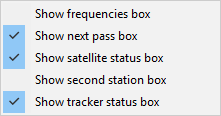
Q31: No passes are listed in the
Passes box on the Setup tab?
A: Be sure that you haven't requested an impossible combination of
duration and/or elevation, for example a 20 minute pass for at least 30 degrees
elevation for a typical polar orbiting satellite.
Q32: Why can't I switch satellites by
clicking on them with the mouse?
A: Because you have selected Auto-switch on the Setup tab.
Q33: How to I
set the control frequencies for the WiSP DDE tracker for Doppler correction?
A: In the file frequencies.ini, create or edit an entry like the ones
below. The hash (#) symbol introduces a comment line, and the satellite's
NORAD reference must be in square brackets.
# Meteor-M N2
[40069]
LRPT=137100000

# Meteor-M N2-2
[44387]
LRPT=137900000
I think the above advice is wrong, as it's the file Radio.ini which should be
edited.
- frequencies.ini is used for the Frequencies display panel. It allows multiple modes as a text display - so AHRPT for Metop-C - where AHRPT is not a "standard" mode such as FM, SSB, CW etc.
- frequencies-va3dbj.ini is an alternative for frequencies.ini. It's provided for information only, and appears to be a list of beacon frequencies.
- The frequency on the Status panel comes from David Bates "TLEnotes.txt", which includes launch data and other information.
Q34: How do I set my location and
station name?
A: Setup tab, My location details, Press the Edit button, Enter your
details (Name, Latitude & Longitude (decimal degrees), Height and Minimum
elevation. Press Add to add a new station, or OK to change an existing
station. Your location will then be added to the list.
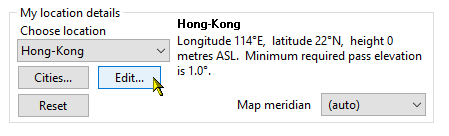
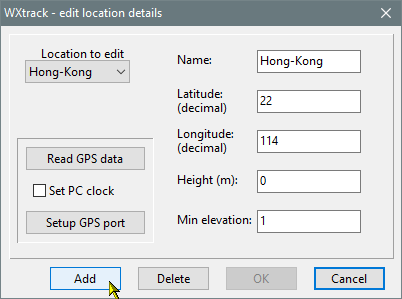
Q35: Why is the label of the ISS missing?
A: Use the Options, ISS... dialog, and in the "TDRS rename &
display" tab you can choose to hide or display ISS-related names. You
may find this useful when using mode detailed icons for the International Space
Station.
Q36: How can I make the satellites easier to see?
A: You can make the satellite name clearer by selecting a bold font in the Options, Satellite font..., which also gives a background to the satellite name.
You can also make the satellite image bigger by giving it an icon. There are a number of icons included in the standard
download, and the filenames are:
#<norad-number>.icn
#<norad-number>.ico
where <norad-number> is the NORAD number of the satellite. There are a couple of .PNG examples as well, Metop-1b.png and MSG.png
Q37: When updating the Kepler data from the
Internet I get a long message starting with a "missing" URL at the
top?
A: You are asking for data either that doesn't exist or perhaps the URL
has changed. Look at the file part of the URL to determine which of the
files is wrong, and uncheck that file from the "Select files to
update" box next time. If you don't need a file set, you may delete
the problem file from your PC.
Q38: Why is the Help detail information missing?
A: Windows has blocked the Help file because you didn't unblock the .Zip
file after downloading. Location the file WXtrack.chm, right-click it,
Properties. and check the Unblock box and Apply. There is more information
on the net, for example:
https://community.spiceworks.com/topic/1961503-solved-windows-10-chm-help-files-showing-up-blank
Q01: I get an error message: "Exception
EAccessViolation in VCL50.BPL at 00000000. Access violation at
00000000. Read of address FFFFFFFF".
A: Have you installed the OpenGL libraries from Microsoft? Please
the Microsoft article Q154877
Q02: I have upgraded to a new graphics card and
WXtrackGL no longer works.
A: Upgrade to the most recent version, which now supports OpenGL 2.0.
|